
How to flash a Google Pixel with GrapheneOS
Install GrapheneOS on a Google Pixel using the official web installer, then set up a privacy-focused phone with recommended apps.
GrapheneOS is a privacy and security focused version of Android. It only runs on Google Pixel phones, and the installer runs in your browser. Allow about 30 minutes.
Warning: installing GrapheneOS erases everything on the phone. Back up anything you want to keep first. Always follow the official instructions at grapheneos.org/install/web if they differ from this page, because they are updated for new releases.
Before you start
- Buy a supported Google Pixel. Support changes over time, so check the current list at grapheneos.org/faq#supported-devices before you buy. Phones sold by carriers can have a locked bootloader, so buy an unlocked one.
- Use a computer with a Chromium-based browser (Chrome, Edge or Brave), or another Android device with a Chromium-based browser. Firefox and Safari do not support the installer.
- Use a good USB cable. Cheap cables are the most common cause of failed installs.
- Charge the Pixel to at least 50%.
- On Windows you may need the Google USB driver. Linux and macOS need no extra software, but Linux may need the
android-udev-rulespackage.
Step 1: Prepare the phone
- Switch on the Pixel, finish the basic setup and connect to Wi-Fi.
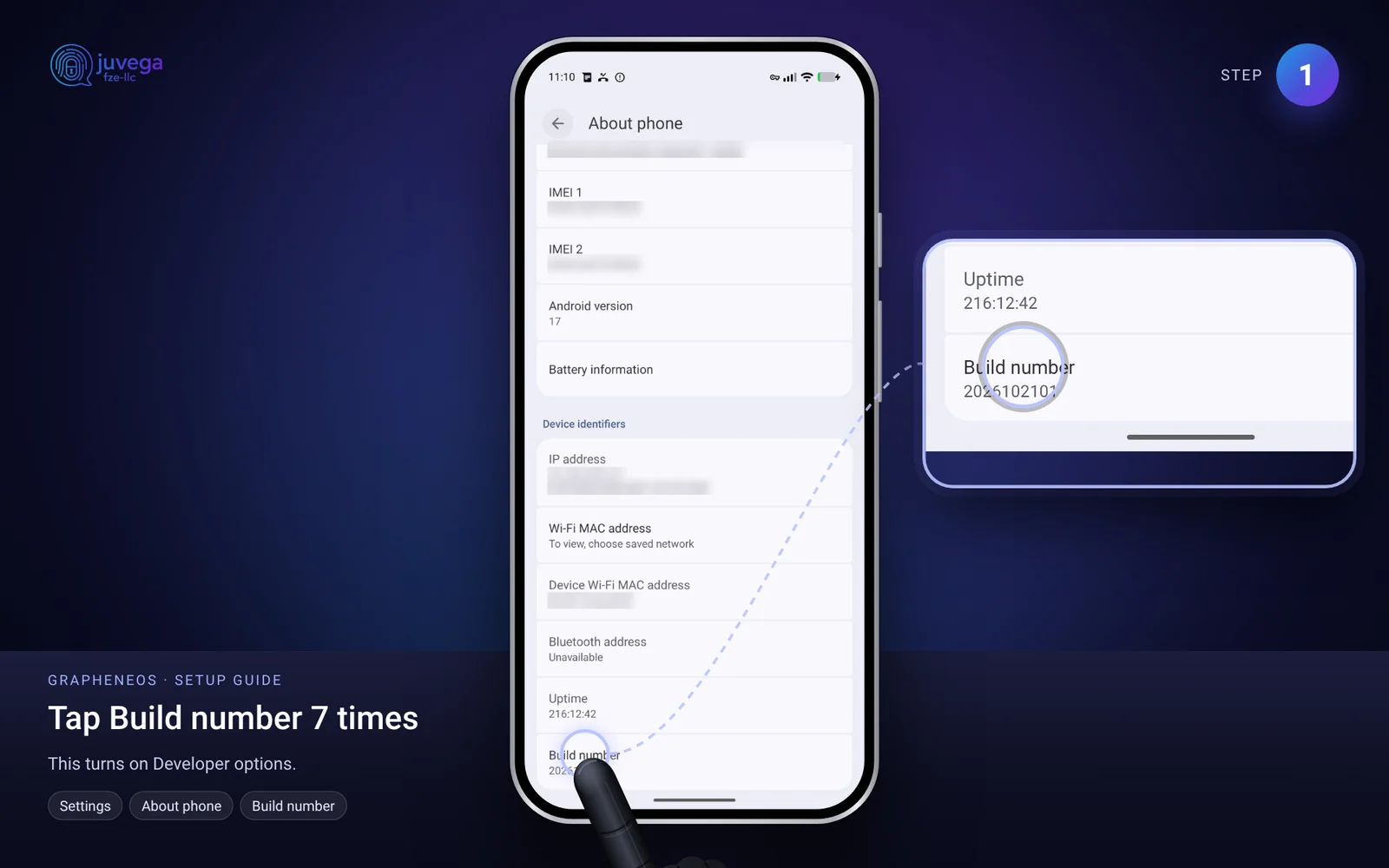
- Open Settings > About phone and tap Build number 7 times until it says developer mode is on.
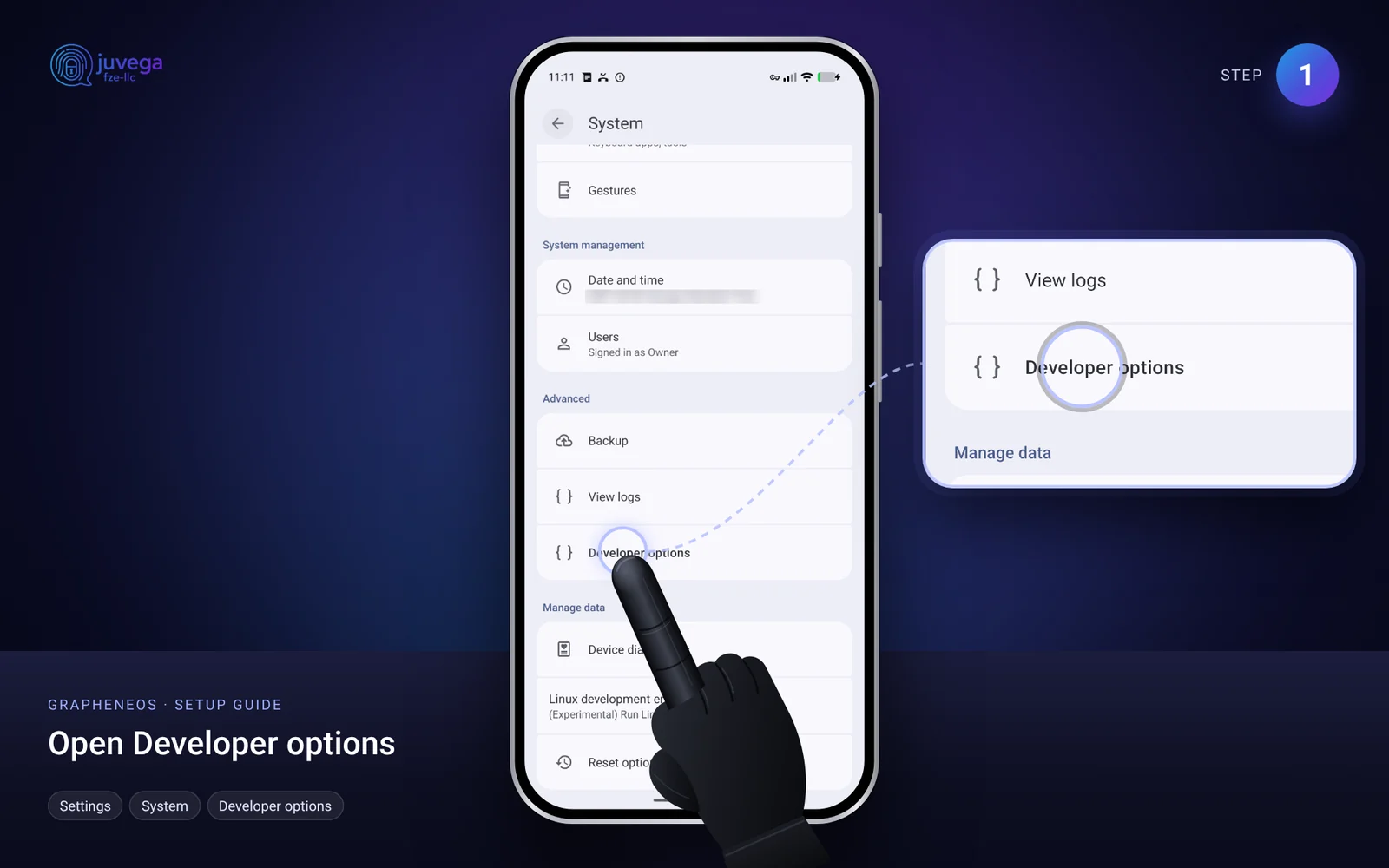
- Open Settings > System > Developer options.
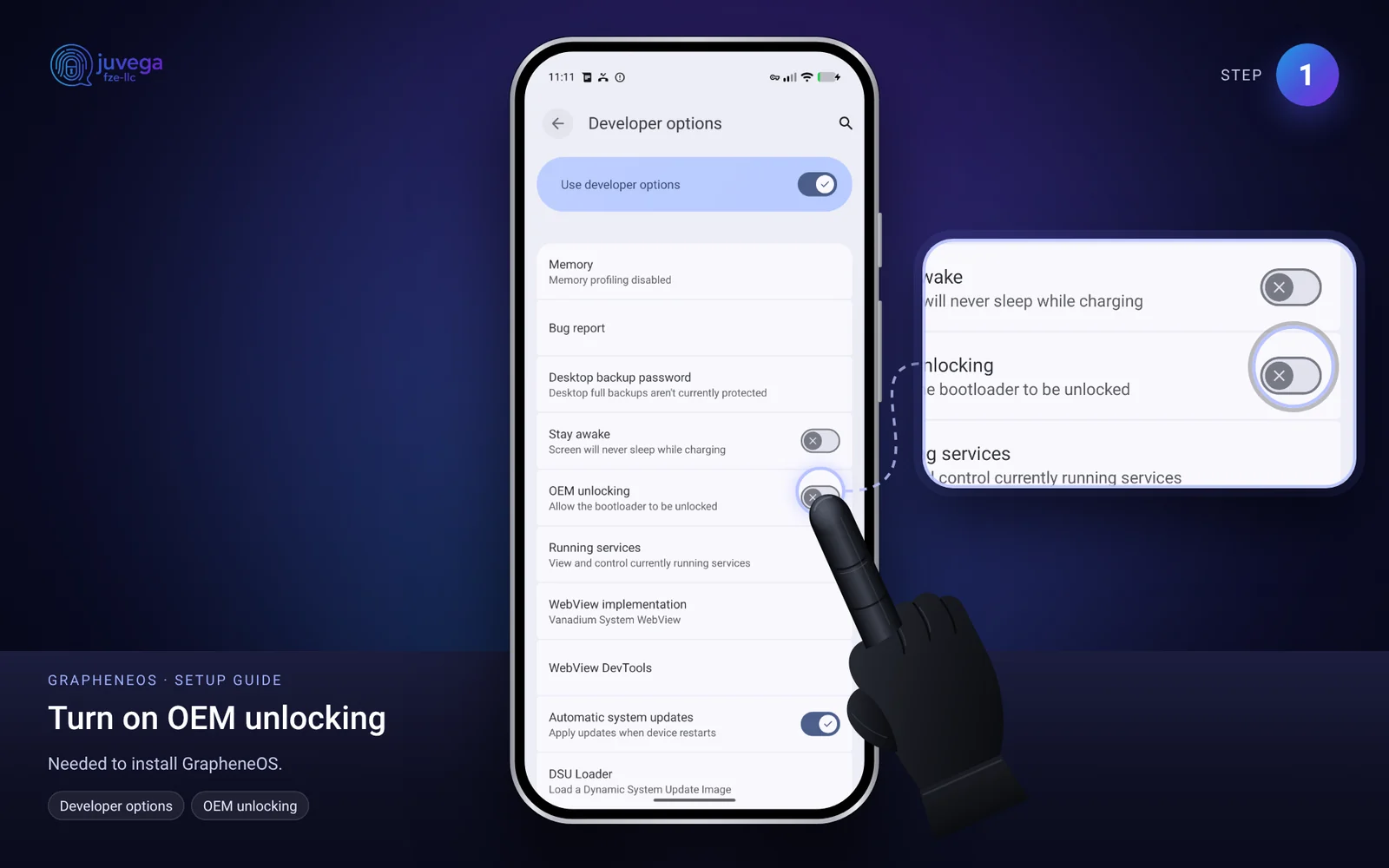
- Turn on OEM unlocking. If it is greyed out, the phone is carrier locked or needs a few days connected to the internet.
- Turn the phone off. Hold Power and Volume Down together until the bootloader menu appears (it says Fastboot Mode).
- Connect the phone to the computer with the USB cable.
Step 2: Install GrapheneOS
- On the computer, open grapheneos.org/install/web in your Chromium-based browser.
- Click Unlock bootloader, choose your phone from the list, then on the phone use the volume keys and power button to confirm Unlock the bootloader. The phone resets itself.
- When the phone is back in bootloader mode, click Download release. The installer downloads the correct files for your Pixel.
- Click Flash release and wait. Do not unplug the phone. This can take several minutes and the phone may restart a few times.
- When flashing finishes, click Lock bootloader, then confirm on the phone with the volume and power buttons. This step turns on verified boot, which protects the phone from tampering.
- Click Reboot into the OS. Once the phone starts, you can disable OEM unlocking again in the Developer options.
Step 3: First setup
- Follow the setup wizard and set a strong PIN or passphrase. A long passphrase is stronger than a short PIN.
- Skip optional extras and decline any location prompts you do not need.
- Open Settings > Security & privacy and review the permissions for each app you install.
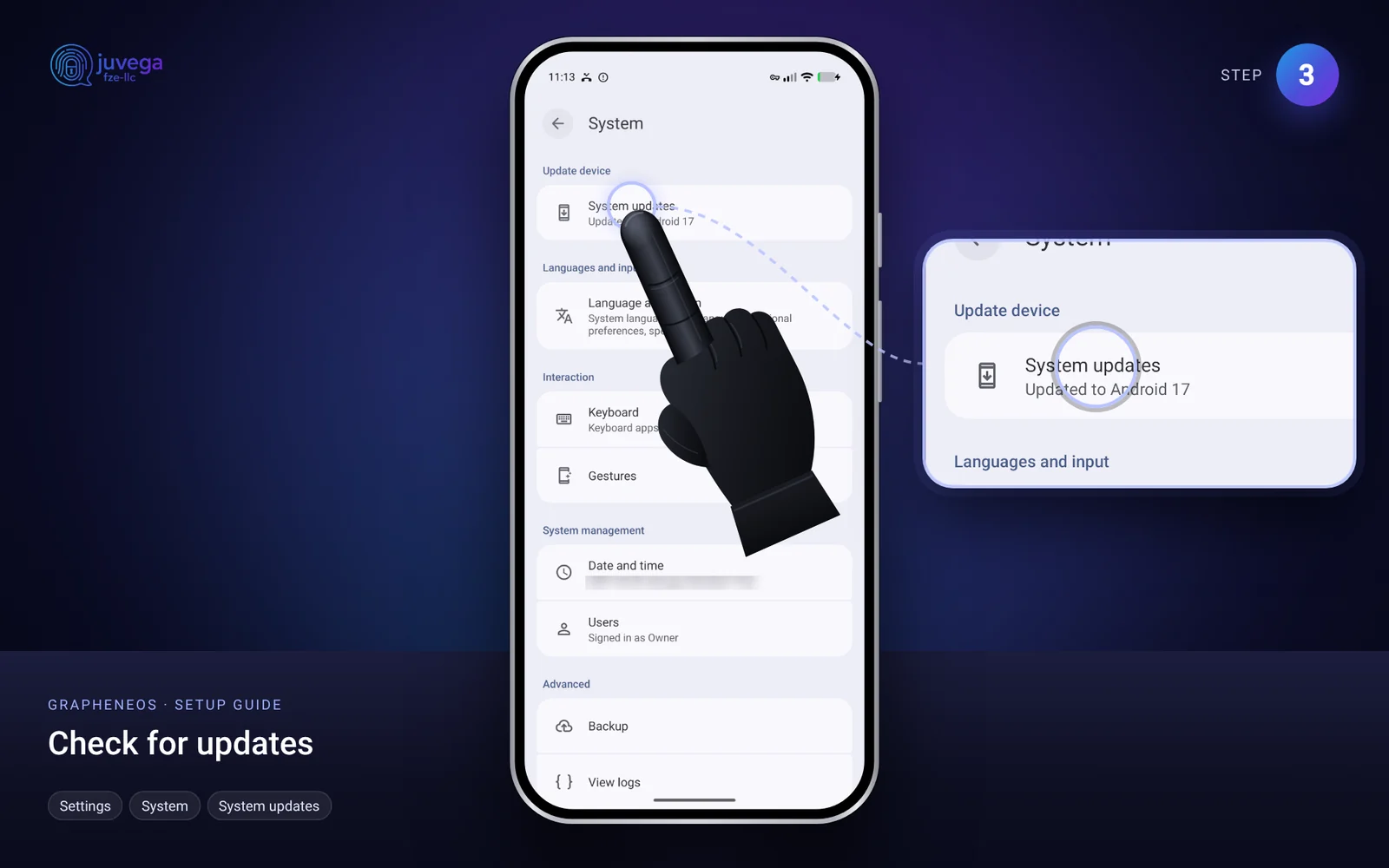
- Update the system under Settings > System > System updates and check for updates regularly.
Installing apps
GrapheneOS ships with a basic app store and Apps, where you can install official apps. Prefer these sources, in this order (the new guide linked below explains each one):
- The GrapheneOS Apps store for GrapheneOS apps and the apps it lists.
- Aurora Store (get it from F-Droid), our preferred way to get everyday apps, without using your own Google account.
- Accrescent, a privacy-friendly app store with fewer apps.
- Obtainium for apps that are shared as downloadable files. It keeps them up to date. Check each file with AppVerifier first. See how to install apps.
- Only download an APK from a developer's own website if no other option exists, and check its signature if the developer provides one.
Recommended apps
| App | What it does | Where to get it |
|---|---|---|
| Aegis Authenticator | Two-factor codes that never leave your phone | Aurora Store (from F-Droid), Obtainium or Accrescent |
| Cryptomator | Encrypt files you store in the cloud | cryptomator.org |
| OpenKeychain | PGP encryption for files and text | Aurora Store (from F-Droid), Obtainium or Accrescent |
| Stack Wallet | Open source crypto wallet | stackwallet.com |
| SimpleX Chat | Private messenger with no user IDs | Aurora Store, Accrescent, simplex.chat |
| Oblivion | Panic button and remote lock or wipe | Aurora Store (from F-Droid), Obtainium or Accrescent |
| FakeTraveler | Set a mock GPS location | Aurora Store (from F-Droid), Obtainium or Accrescent |
| Tor Browser | Anonymous browsing | See how to use Tor |
Comments
Loading comments…