
How to install apps on GrapheneOS
The safe places to get apps, how to use Aurora Store for everyday apps, and how to share apps with your everyday profile.
On a normal phone you download apps from one store. On GrapheneOS you have a few safe options. This guide explains each one in simple steps. It assumes you have already set up profiles.
The plan in one sentence
Install apps in the Owner profile, then share them to your everyday Default profile. That way only Owner can install or update things.
Where to get apps
The safest order is: official website first, then F-Droid, then Aurora Store. Read how to download apps safely for the reasons.
- The GrapheneOS app store (Apps). Built in. It has GrapheneOS's own apps, such as the browser (Vanadium), Camera, PDF Viewer and the Auditor. Use it first for those.
- The app's official website. Download the file straight from the developer and check it with AppVerifier.
- F-Droid. A store of open source apps with no adverts or hidden trackers.
- Aurora Store (last choice). A free, open source store that lets you download almost any common Android app, without signing in to a Google account of your own. Use it only when the app is not available any other way.
- Accrescent. A privacy-friendly app store with a smaller choice of apps.
- Obtainium. Keeps apps from developers' websites up to date.
Whichever way you get an app, only install apps you actually need, and check what permissions each one asks for.
Step 1: Install from the GrapheneOS app store
- Open the Apps app in the Owner profile.
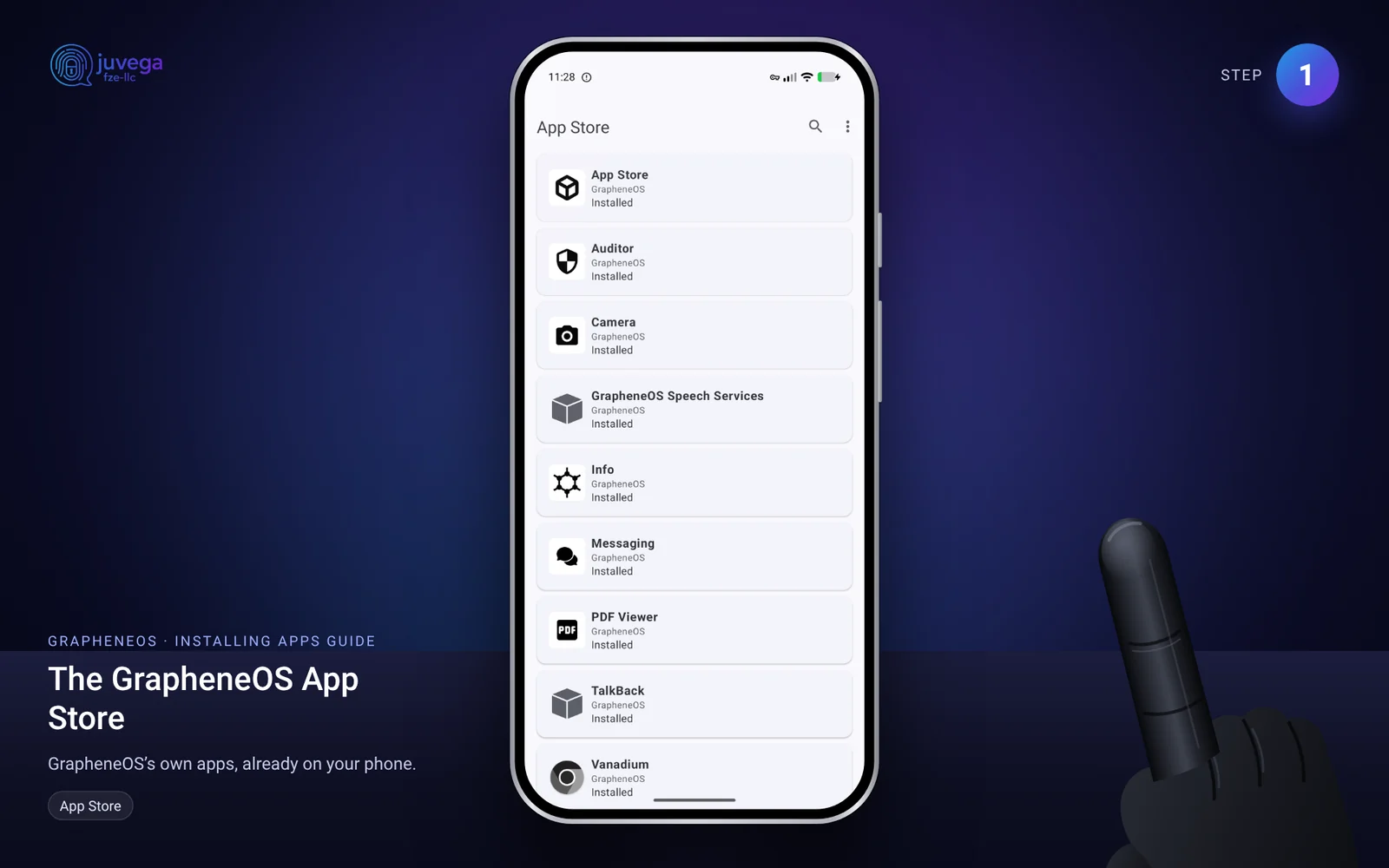
- Tap the app you want, then Install.
- Repeat for any others, such as Accrescent if you want that store.
Step 2: Install Aurora Store
- Get Aurora Store from F-Droid. Either install the F-Droid app from f-droid.org and search for Aurora Store there, or open the Aurora Store page on f-droid.org in your browser and download its file (APK). Make sure the address is exactly f-droid.org.
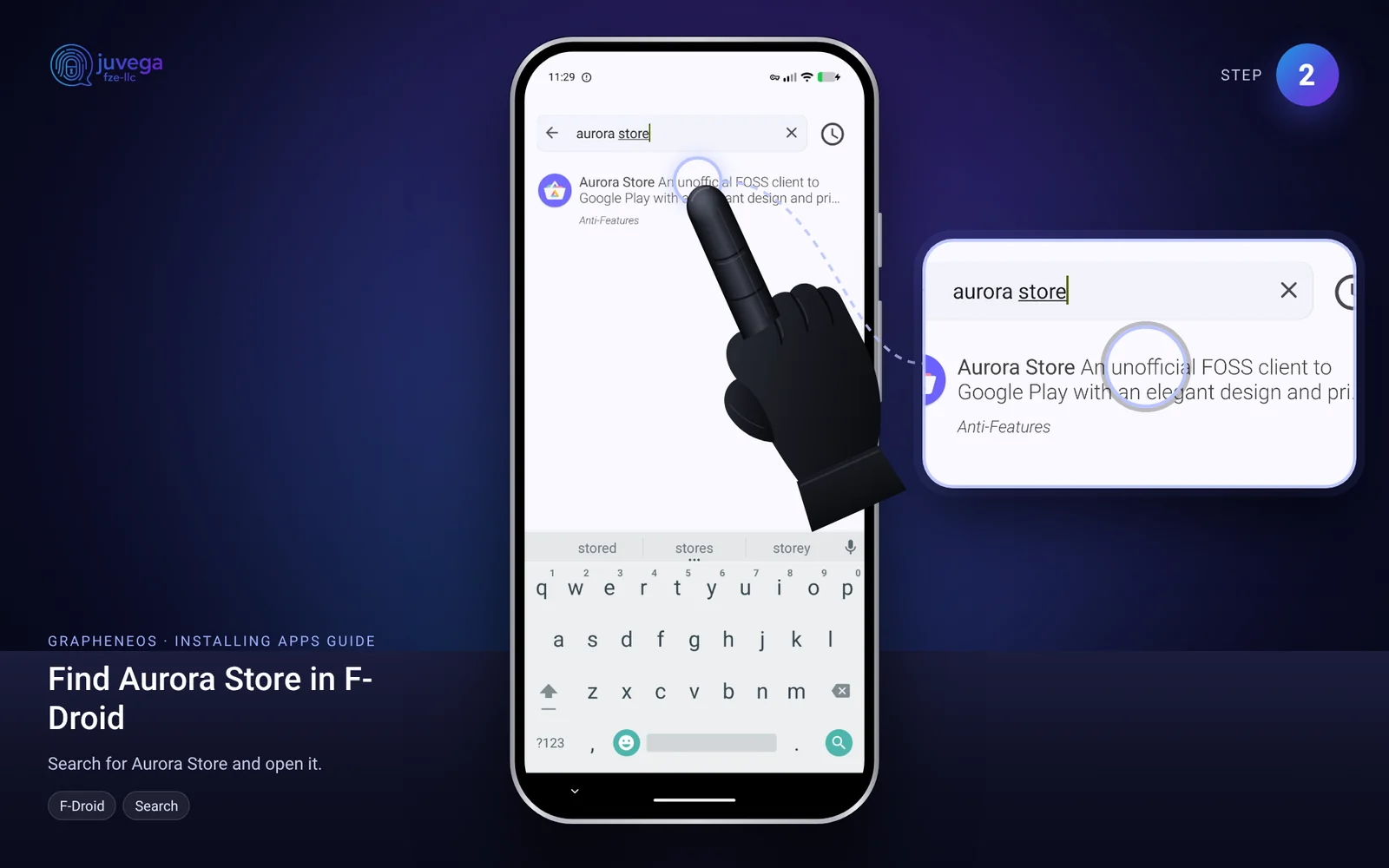
- If you downloaded the file by hand, check it is genuine with the AppVerifier app (see Step 3) by comparing the fingerprint it shows with the one the developers publish.
- Install it. Android will ask you to allow installs from the app you used to download it. Allow it just for this install, then switch the permission off again.
- Open Aurora Store and choose Anonymous when it asks how to sign in. You do not need your own Google account.
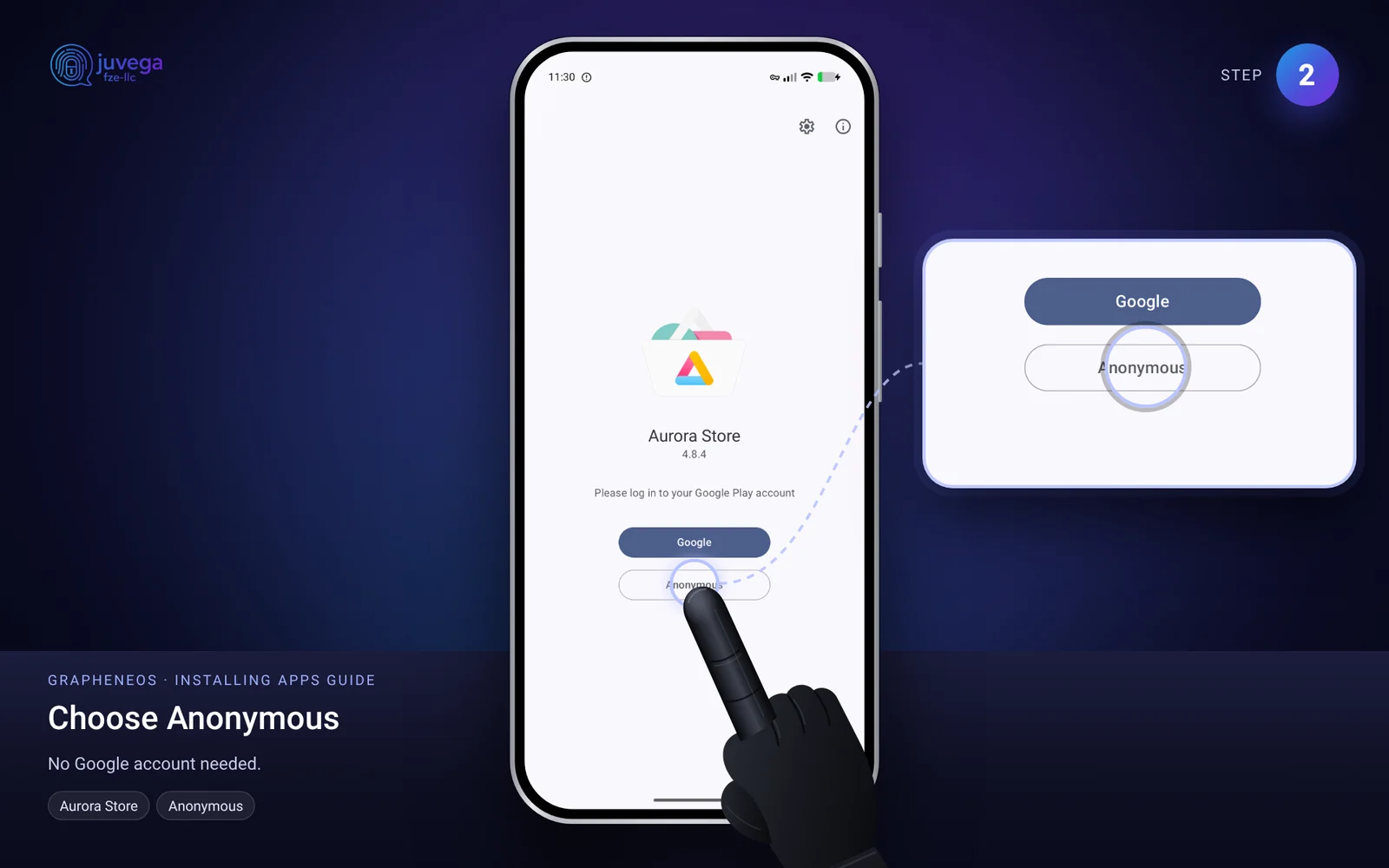
- To get an app, search for its name, tap it, then tap Install.
- Turn on automatic updates inside Aurora Store's settings so your apps stay up to date.
Install Aurora Store in the Owner profile, like everything else, and then share the apps you install with your other profiles (Step 4).
Step 3: Install apps from developers' websites, with Obtainium
- On a computer or phone, go to the Obtainium page on GitHub and open its Releases.
- Download the file ending in arm64-v8a.apk.
- Before installing it, check it is genuine using the AppVerifier app (you can get this from Accrescent). Compare the fingerprint it shows with the one the developer publishes.
- Install Obtainium, then add the apps you want by pasting each app's GitHub page address. Obtainium will update them for you.
Step 4: Share your apps with your everyday profile
- In the Owner profile, open Settings > System > Users.
- Tap your Default profile.
- Tap Install available apps and choose the apps you want there.
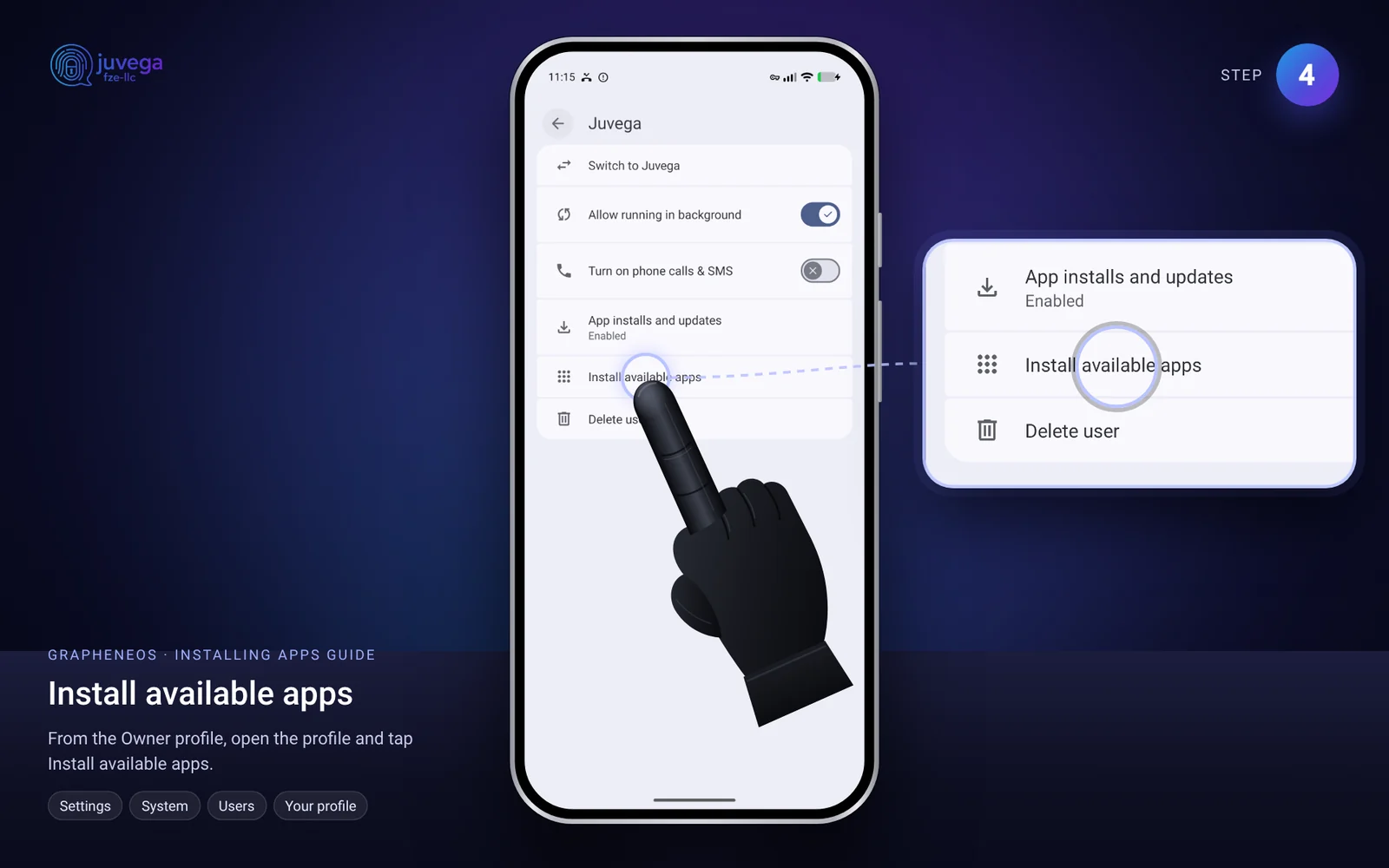
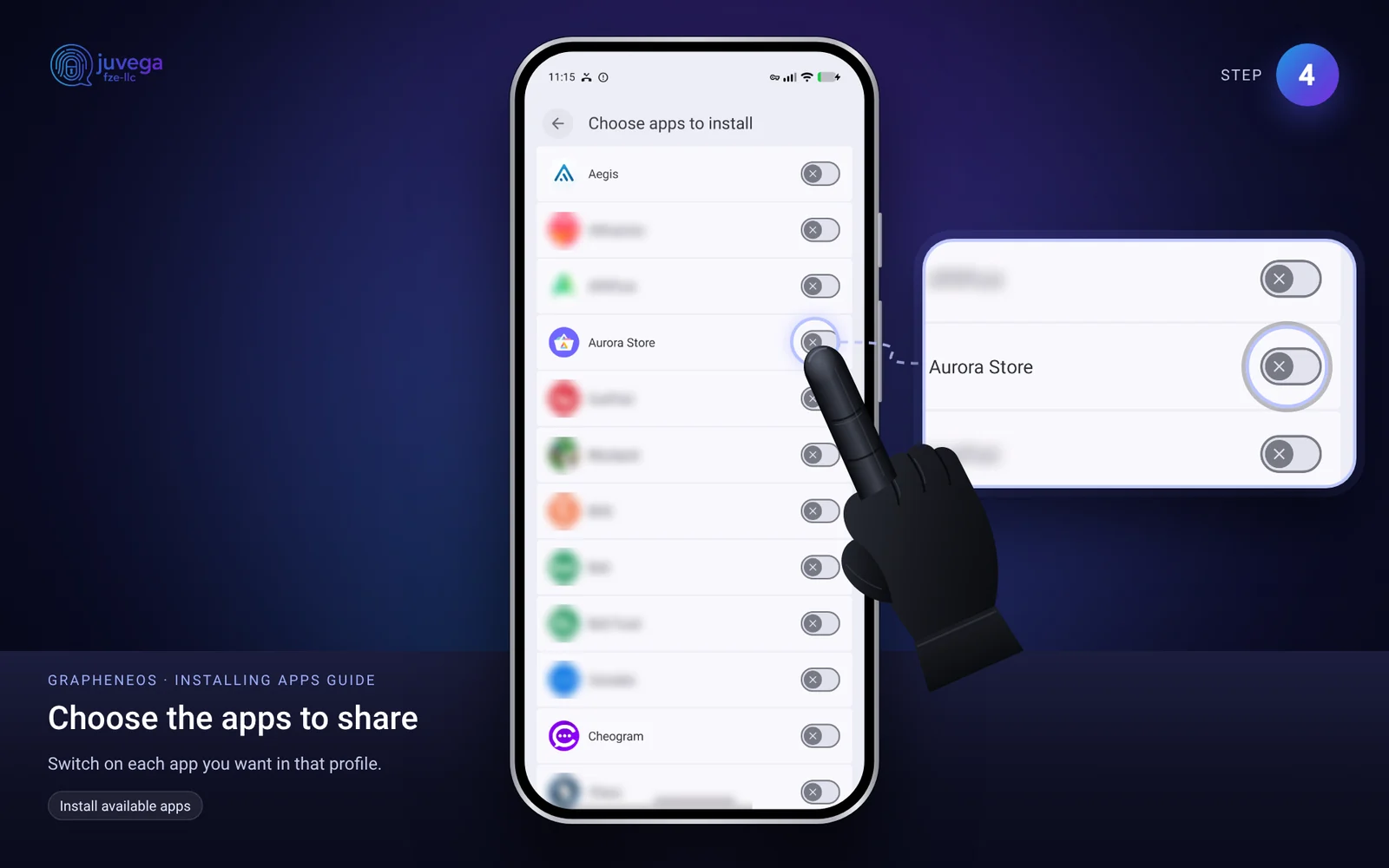
- Back in the Owner profile, turn off (disable) the apps you do not use there. Do not turn off VPN apps.
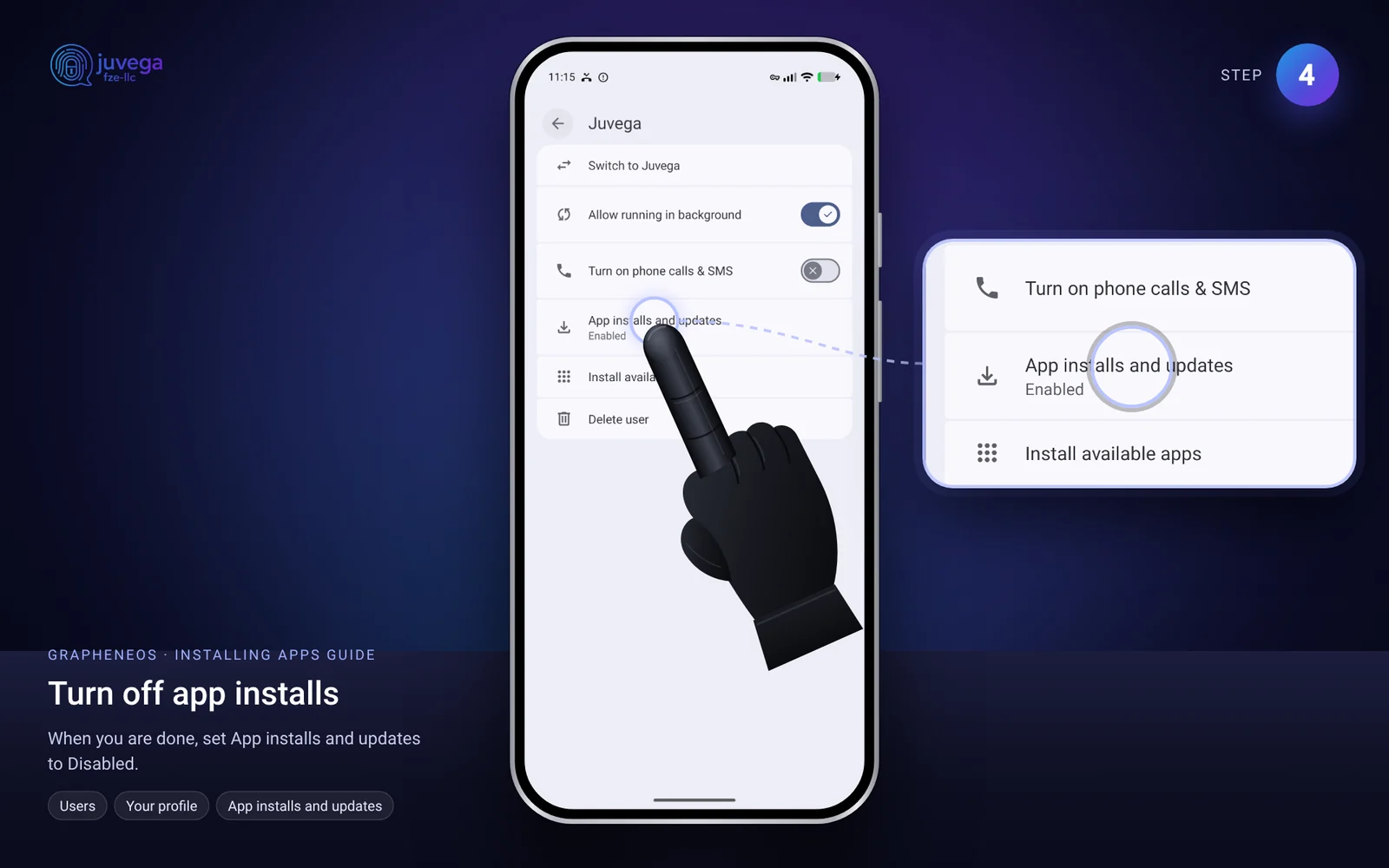
- When everything is set up, set App installs and updates for the Owner profile to Disabled.
Apps that need Google
Some apps, such as many banking apps, need Google services to work. Put them in a separate profile so they cannot see your other apps. See how to set up Google Maps on GrapheneOS for an example. If you can, do your banking on a computer instead.
If something goes wrong
- An app will not install: check you are in the right profile and have enough storage.
- An app is missing from the Default profile: repeat Step 4.
- An app says it needs Google: it may work in the separate profile described above.
This guide is based on the public AnarSec guide "GrapheneOS for Anarchists" (anarsec.guide), rewritten in plain language. Their guide is written for people at high risk, so some advice is stricter than most people need. Use what fits your situation.
Comments
Loading comments…