
How to set up Google Maps on GrapheneOS
Install Google Maps on GrapheneOS with Aurora Store in a separate profile, set the location server to the GrapheneOS Proxy Server, and keep permissions tight.
GrapheneOS does not include Google apps. If you still want Google Maps, you can run it in a separate profile, together with Sandboxed Google Play: Google's own services, installed as normal apps with no special access to your phone. Google cannot see the rest of your phone, and you decide what it may use.
Using Google Maps shares your location and searches with Google. Keep it in its own profile, switch to that profile only when you need it, and consider open source alternatives such as Organic Maps or OsmAnd for everyday navigation.
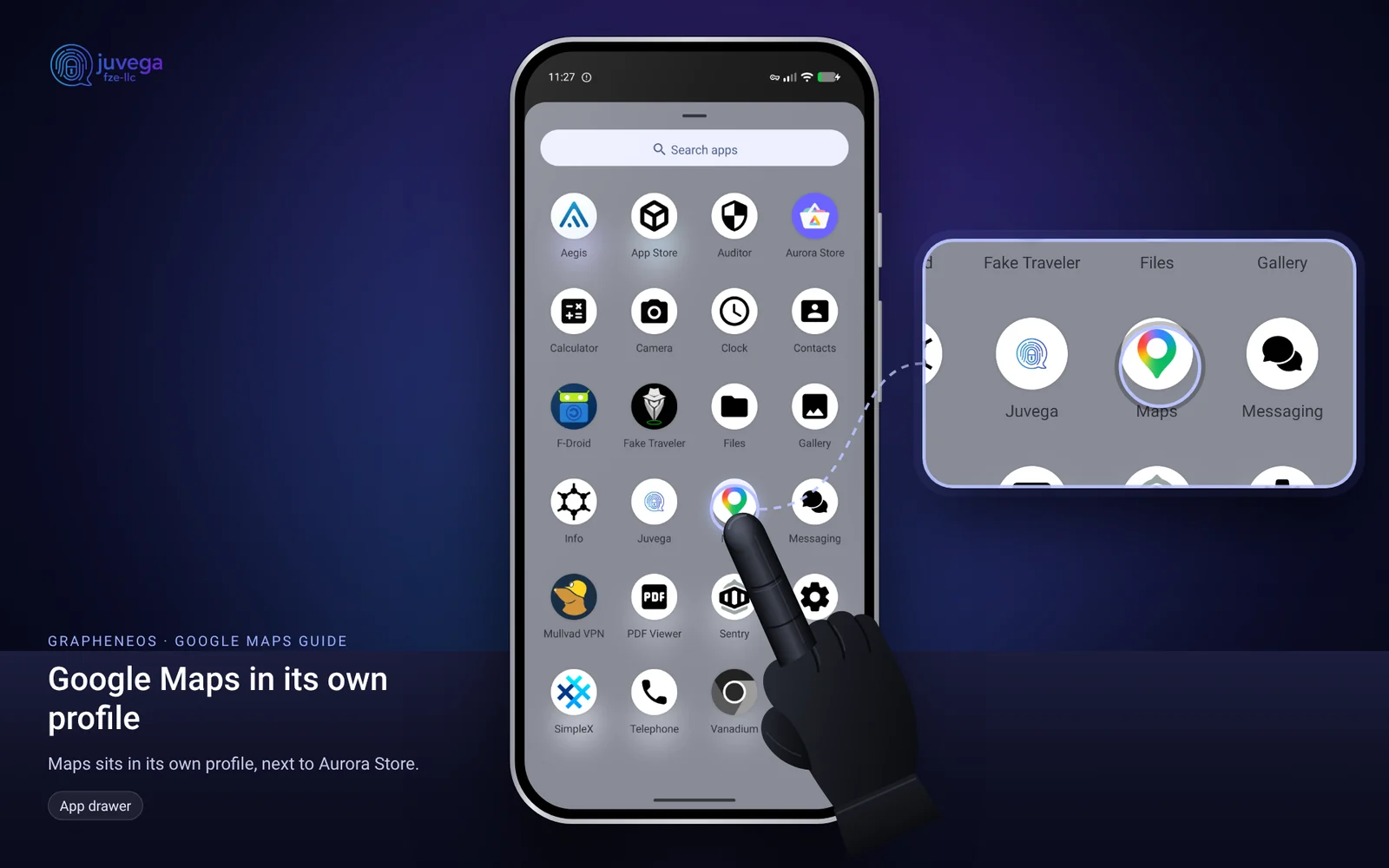
What is Sandboxed Google Play?
On a normal Android phone, Google Play services is part of the system. It can see almost everything and cannot be removed. On GrapheneOS it is different:
- It is an ordinary app. It gets no special rights. It only gets the permissions you give it, like any other app.
- It lives in one profile. Install it only in your Maps profile, and the rest of your phone has no Google at all.
- You can remove it at any time, like any other app.
Many Google apps, including Maps, need it for sign-in, map updates, notifications and location. Without it, Maps often stops with a message about Google Play services.
Step 1: Create a separate profile
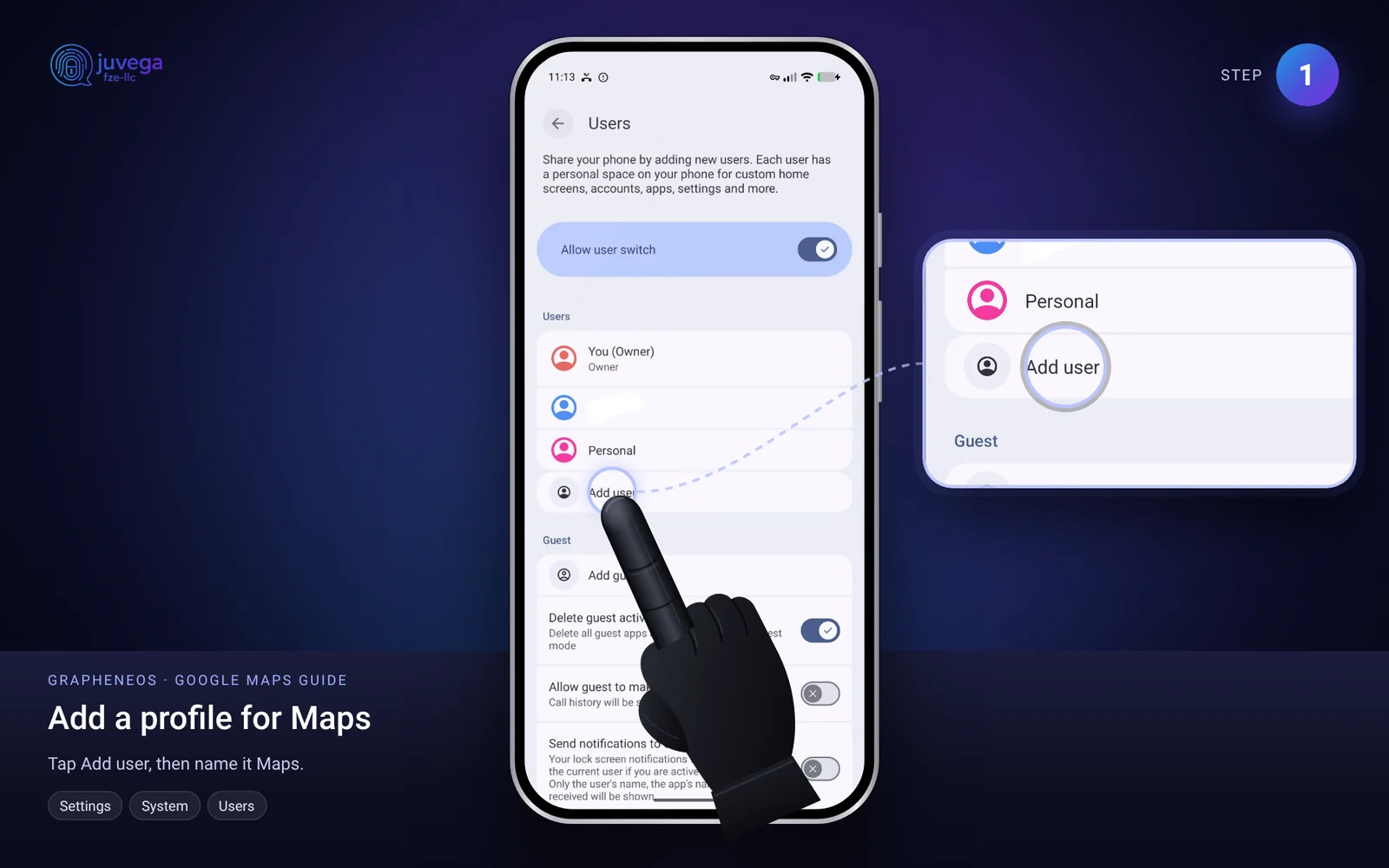
- Open Settings > System > Users.
- Tap Add user, name it (for example "Maps") and switch to it.
- Finish the quick setup. Everything you install in this profile is kept apart from your main profile.
Step 2: Install Sandboxed Google Play in the Maps profile
Do this inside the Maps profile.
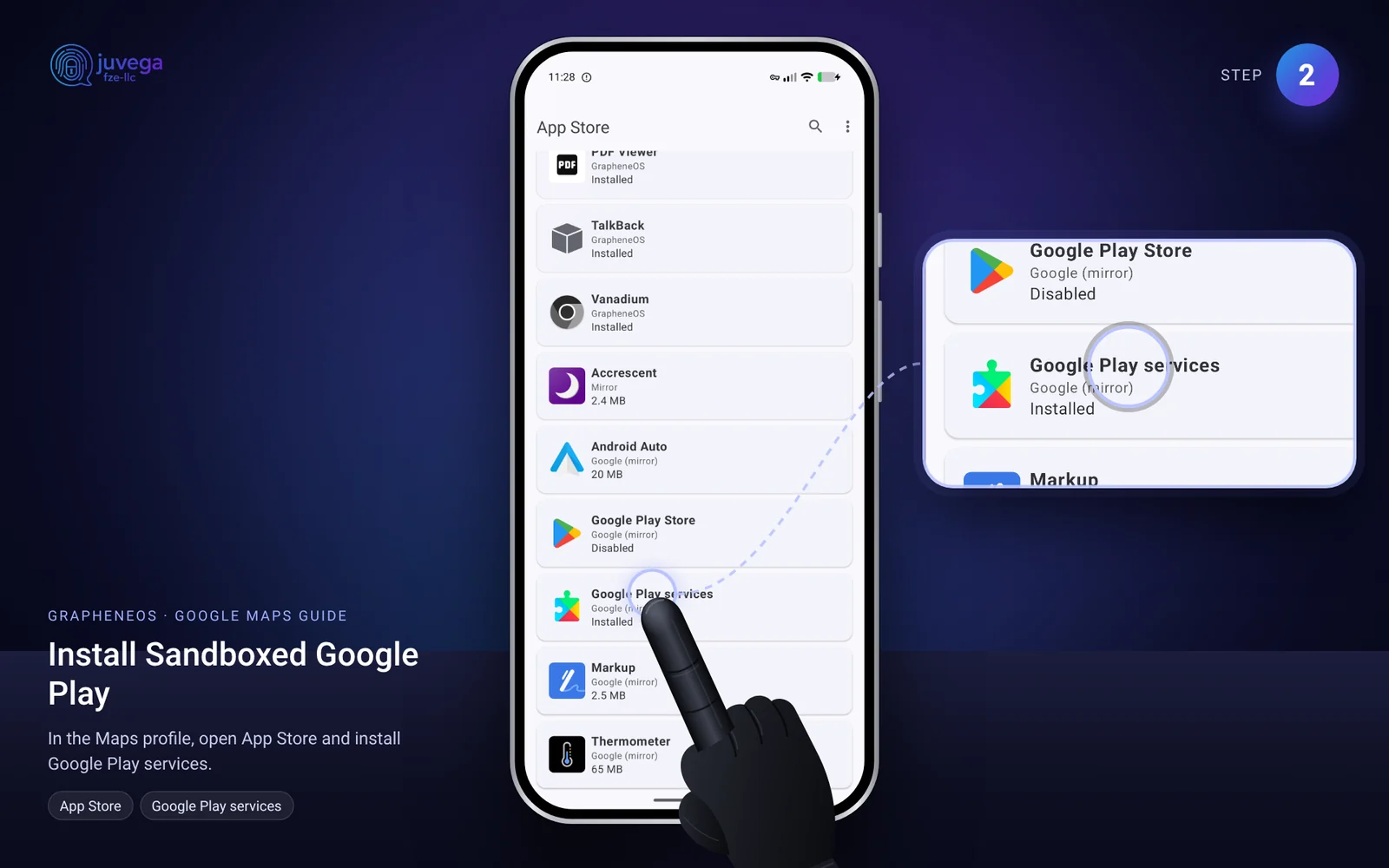
- Open the App Store app (the GrapheneOS app store, already on your phone).
- Find Google Play services and tap Install. It installs three parts: Google Services Framework, Google Play services and Google Play Store. All three are needed.
- Wait until it says Installed. A notification may ask you to allow Play services to run in the background: allow it, so map updates and notifications work.
Step 3: Check the Sandboxed Google Play settings
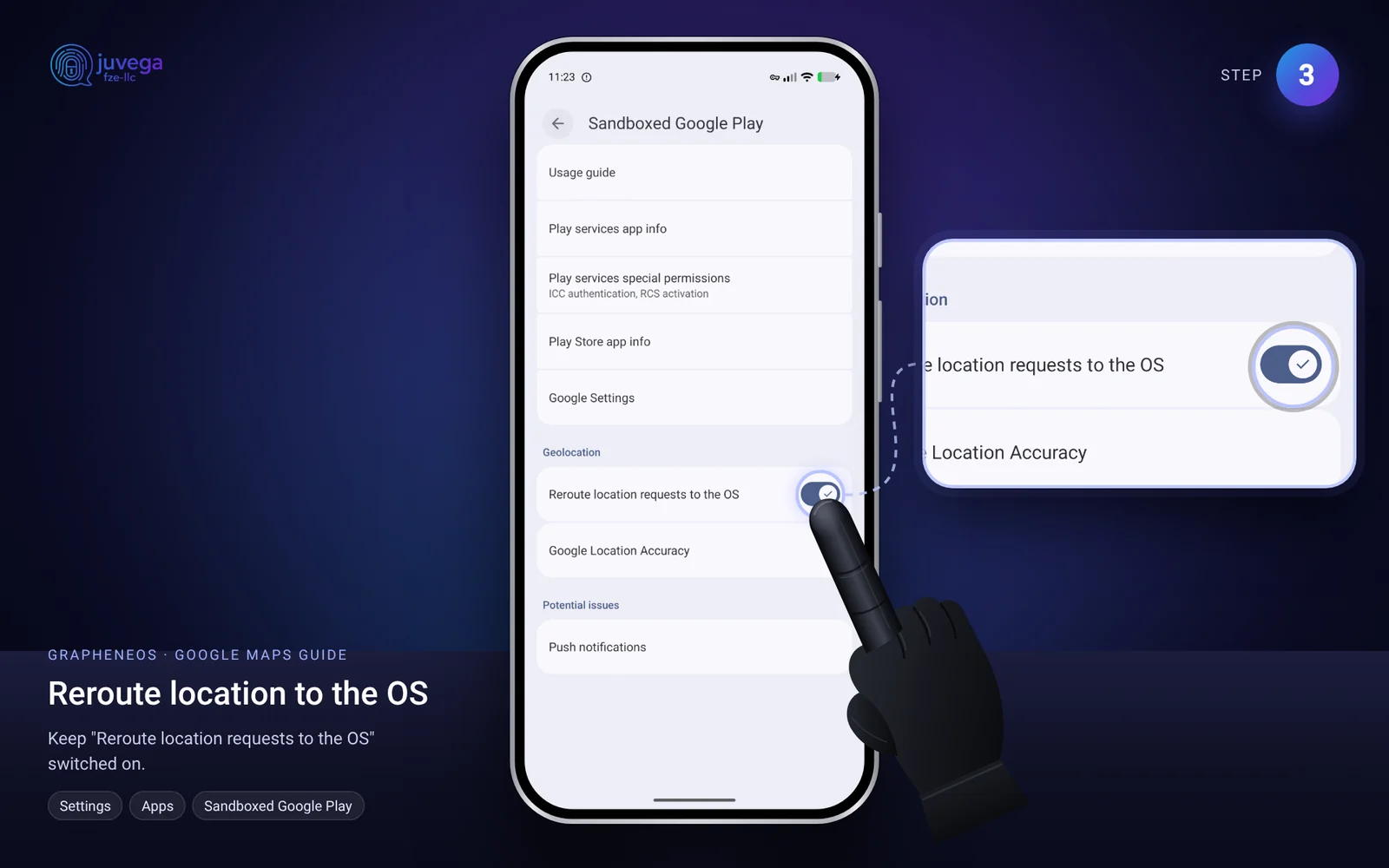
- Open Settings > Apps > Sandboxed Google Play.
- Make sure Reroute location requests to OS is switched on. Maps then gets your location from GrapheneOS instead of from Google's location service, so Google does not need location permission for itself.
- If Google apps keep crashing, open Usage guide on the same page for the fixes GrapheneOS recommends.
- You do not need to sign in to a Google account. Maps works without one. Only sign in if you need your saved places.
Step 4: Install Google Maps
- Share Aurora Store to the Maps profile. In the Owner profile, open Settings > System > Users, tap the Maps profile, choose Install available apps, then pick Aurora Store. If you have not installed Aurora Store yet, follow how to install apps on GrapheneOS first.
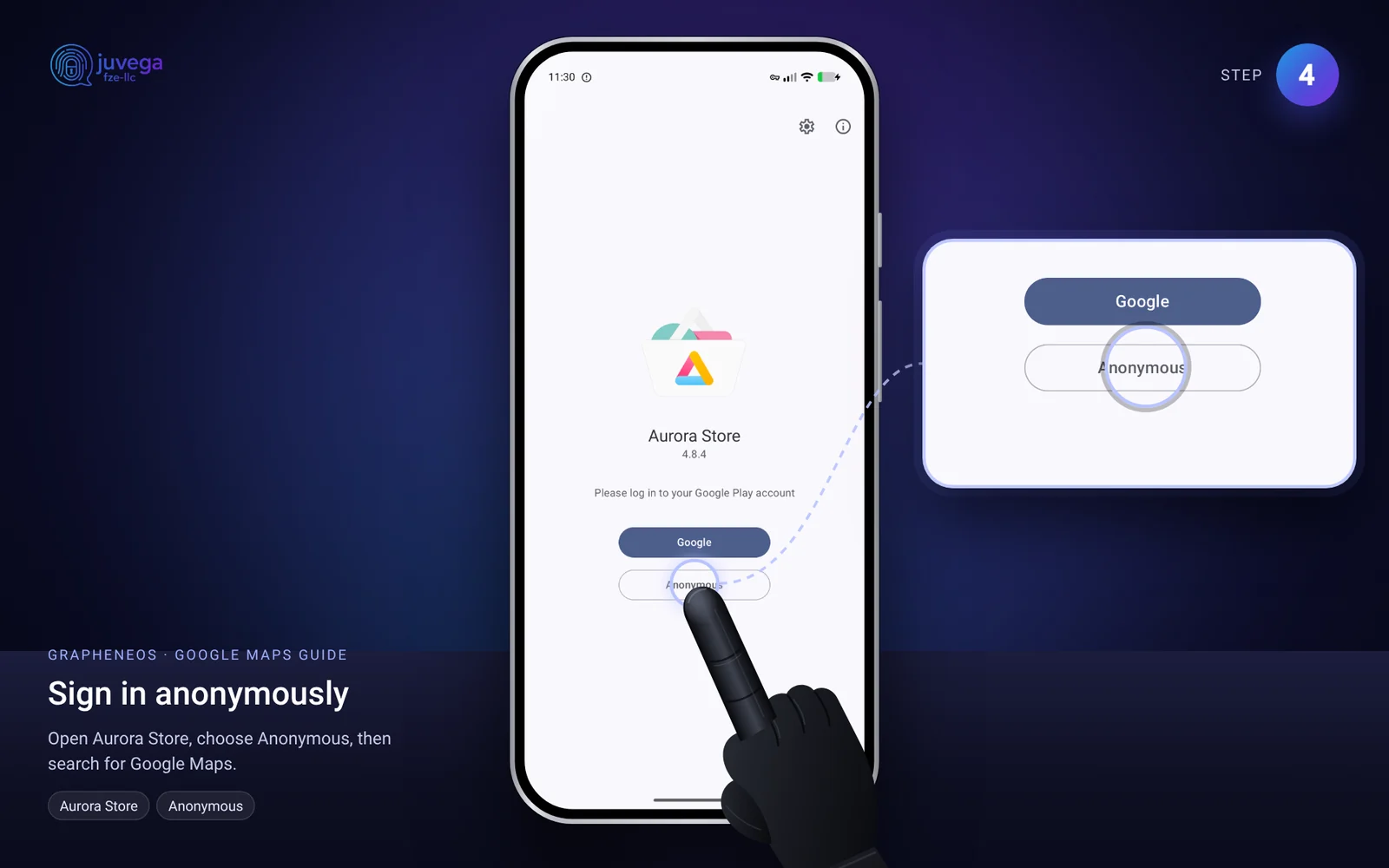
- Switch to the Maps profile and open Aurora Store. When it asks how to sign in, choose Anonymous.
- Search for Google Maps, then tap Install.
Step 5: Set the location service to the GrapheneOS proxy
This step keeps Google from talking to your phone directly to work out where you are. Do it inside the Maps profile.
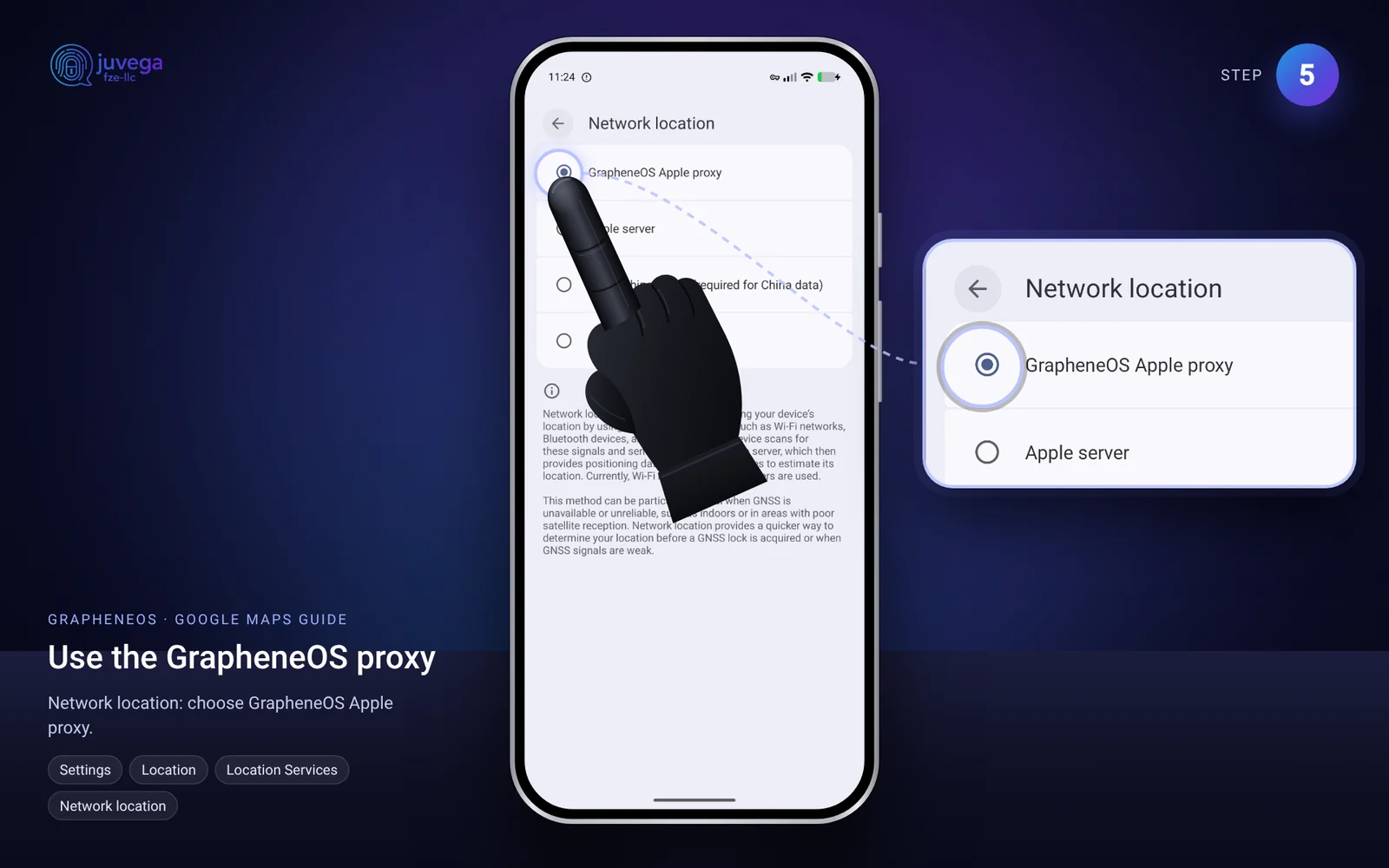
- Open Settings > Location > Location Services.
- Tap Network location.
- Choose GrapheneOS Apple proxy. Location lookups go through a GrapheneOS server, so the location service never sees your phone's internet address. While you are here, keep Wi-Fi scanning and Bluetooth scanning off.
Step 6: Give Maps location access safely
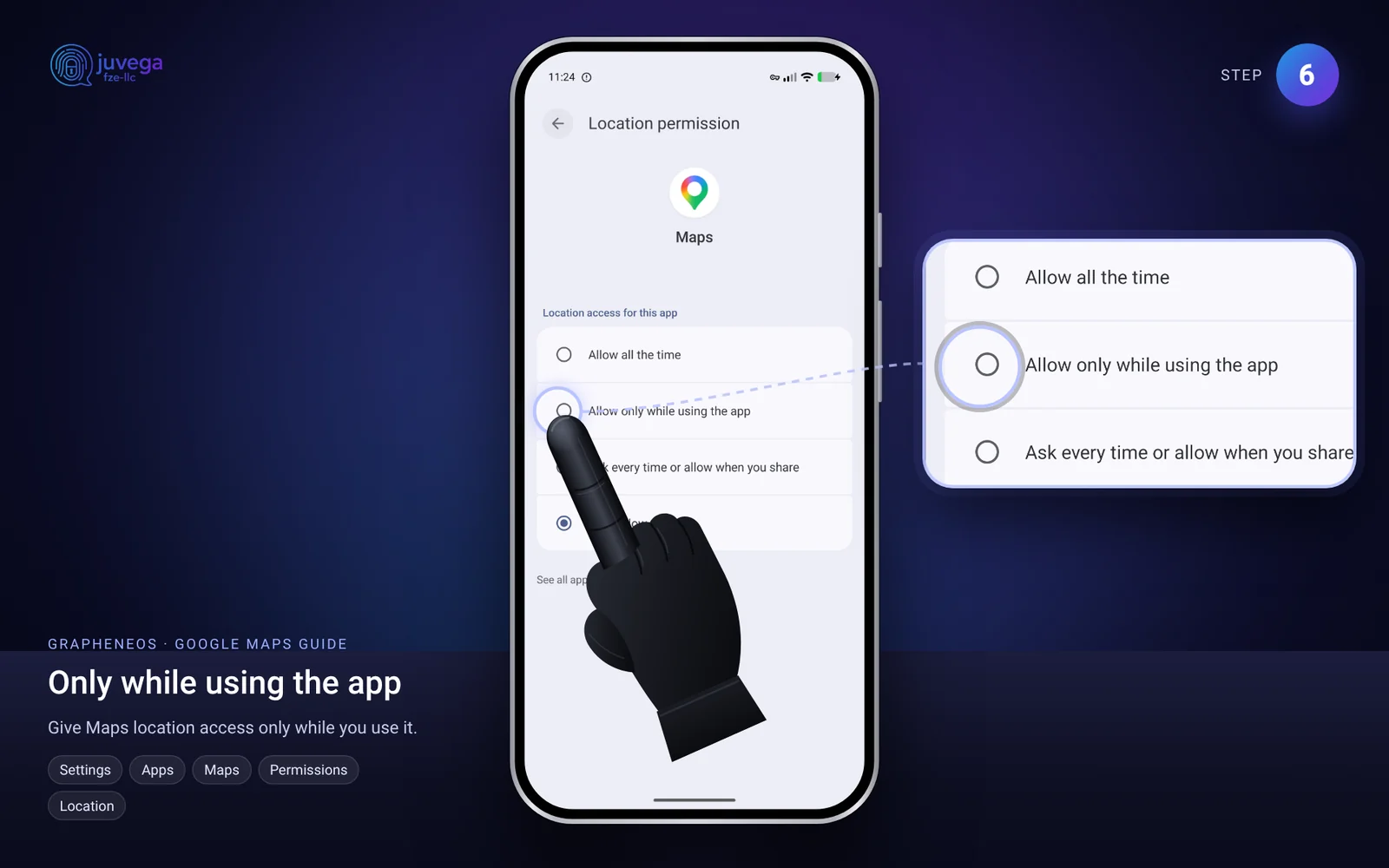
- Open Settings > Apps > Maps > Permissions > Location.
- Choose Allow only while using the app. Avoid Allow all the time.
- Decide whether to allow Precise location. Turn-by-turn navigation needs it; a rough search does not.
- Do not give location permission to Google Play services itself. With rerouting on (Step 3), it does not need it.
Daily use
- Switch to the Maps profile only when you need directions, then switch back. Ending the session stops Maps and Google Play from running.
- Download offline maps in Google Maps before a trip, so you can navigate with only your location and no data.
- In Google Maps, keep Timeline / Location history off.
- Keep Maps and Google Play up to date through Aurora Store and the App Store.
If something does not work
- "Google Play services is required": check Step 2 finished, in the same profile as Maps.
- No location: check location is on, Maps has location permission, and Reroute location requests to OS is on.
- Crashes: restart the phone, then check Usage guide under Settings > Apps > Sandboxed Google Play.
- Check the GrapheneOS website for current notes, because menus can change between releases.
Comments
Loading comments…