
How to use profiles on GrapheneOS
Set up separate profiles so that a problem in one app cannot reach the rest of your phone.
A profile is like a separate phone living inside your phone. Each profile has its own apps, files and password. Data in one profile cannot be seen by another. If something goes wrong in one profile, the others stay safe.
The profiles we suggest
- Owner. This is the first profile, made when you set up the phone. You use it only to install apps and change settings. You unlock it with a strong password when you turn the phone on.
- Default. This is the one you use every day. Your calls, messages and everyday apps live here.
- Google (optional). Only if you need apps that insist on Google services. See how to install apps. Keeping them here stops them from touching your other apps.
How to make a new profile
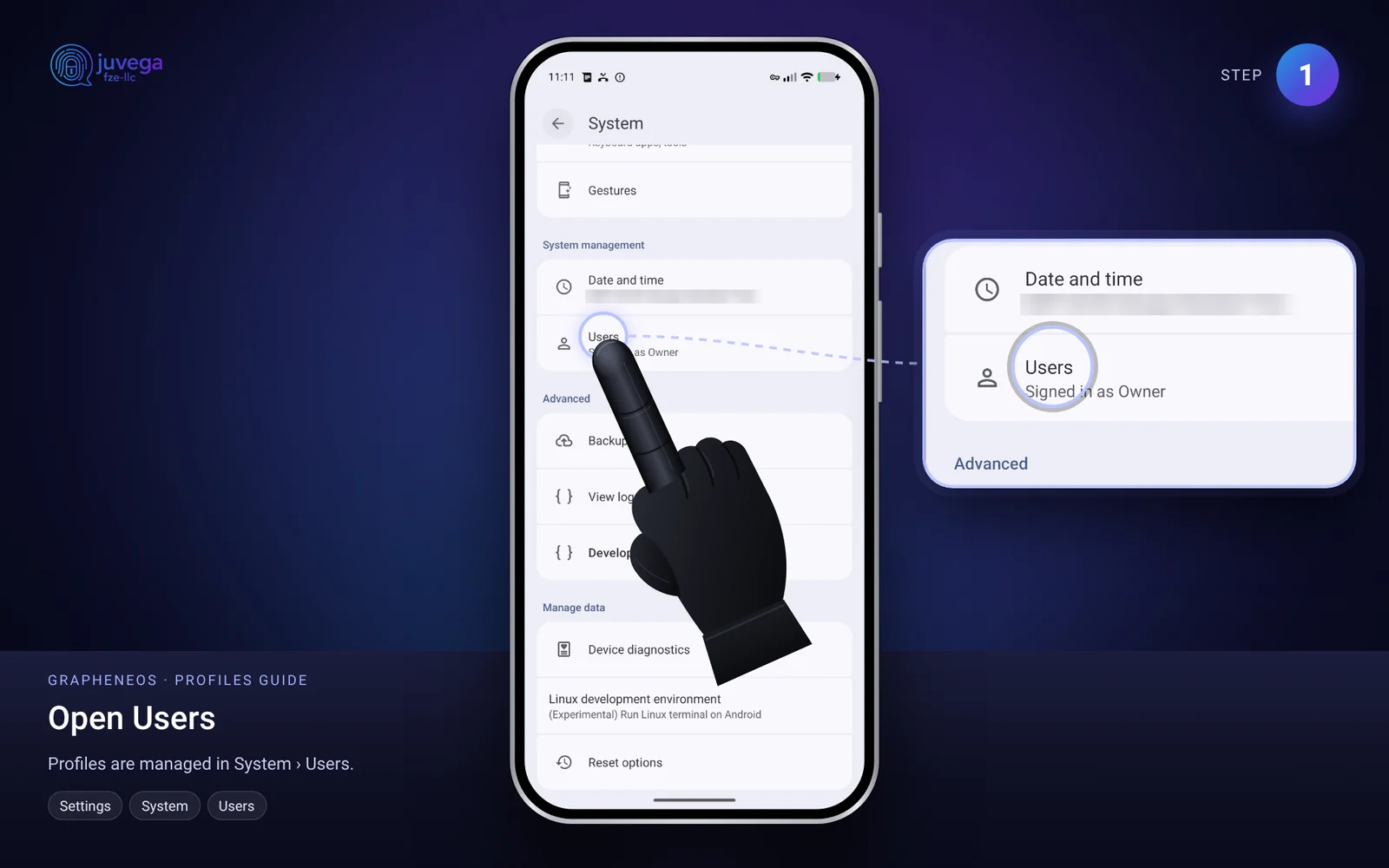
- Open Settings, then System, then Users.
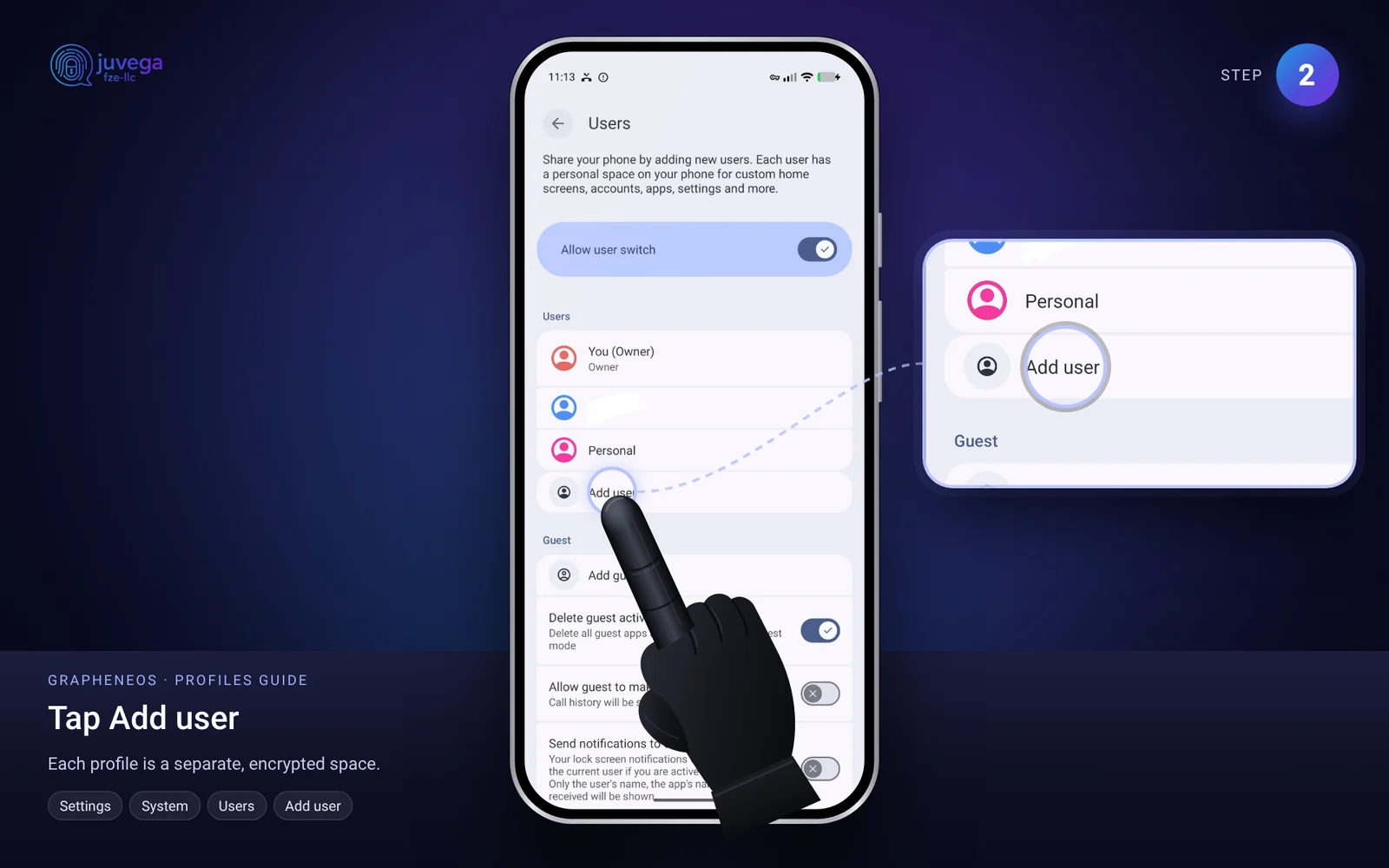
- Tap Add user.
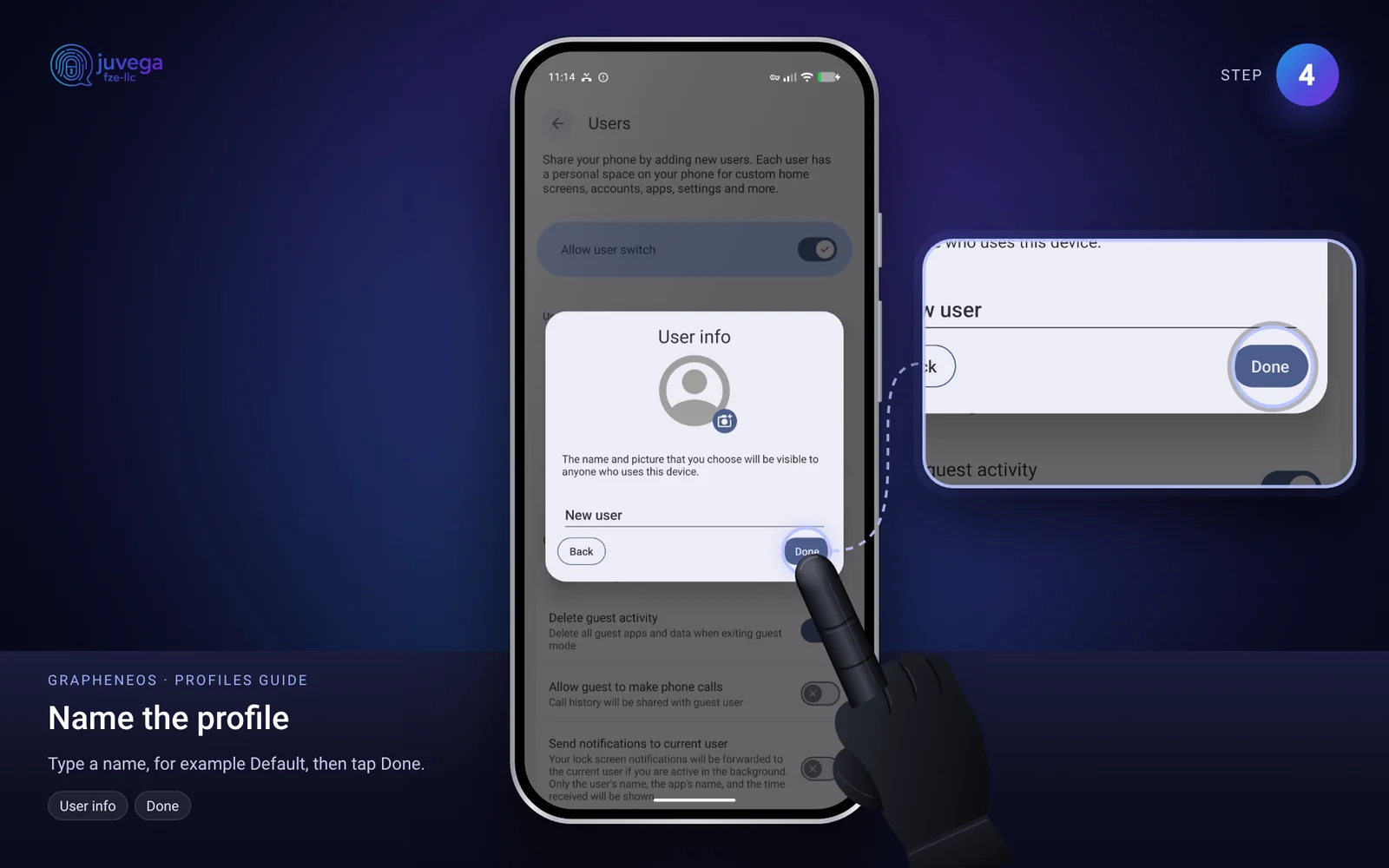
- Tap Next, then type a name, such as "Default" or "Google", and tap Done.
- Follow the short setup on screen. Choose a password for the new profile.
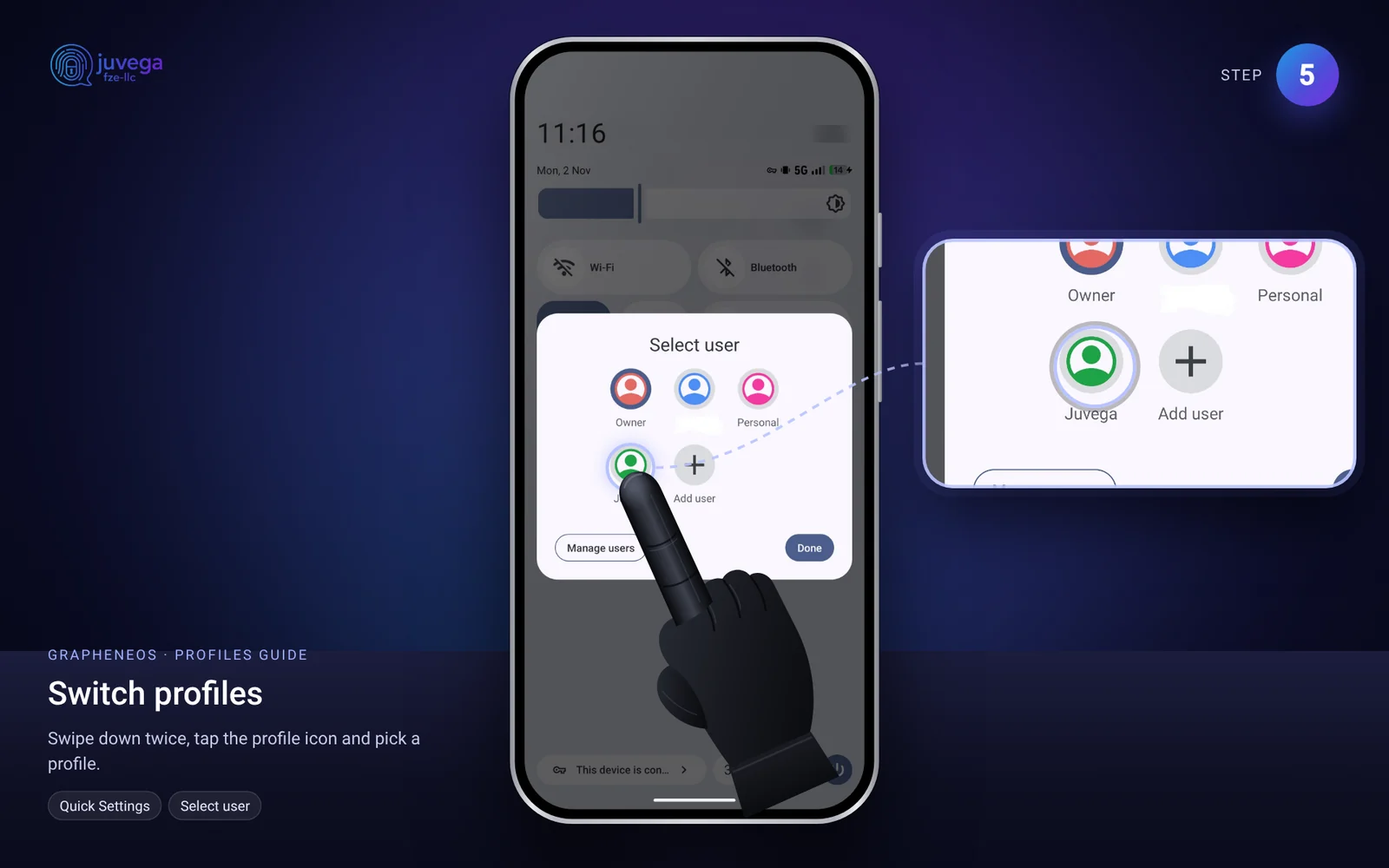
- To change profile later, swipe down from the top of the screen twice to open Quick Settings, then tap the profile picture. You can also use Settings > System > Users.
Choose how strong each password is
There is a trade-off between safety and convenience. You choose one of these for your daily profile:
- A weak password and a short locking time. Easier to type many times a day, but it locks again quickly.
- A strong password and a longer locking time. Harder to type, but the screen stays unlocked longer.
To set the locking time:
- Open Settings, then Security, then Screen lock settings.
- Choose Lock after screen timeout and pick a time.
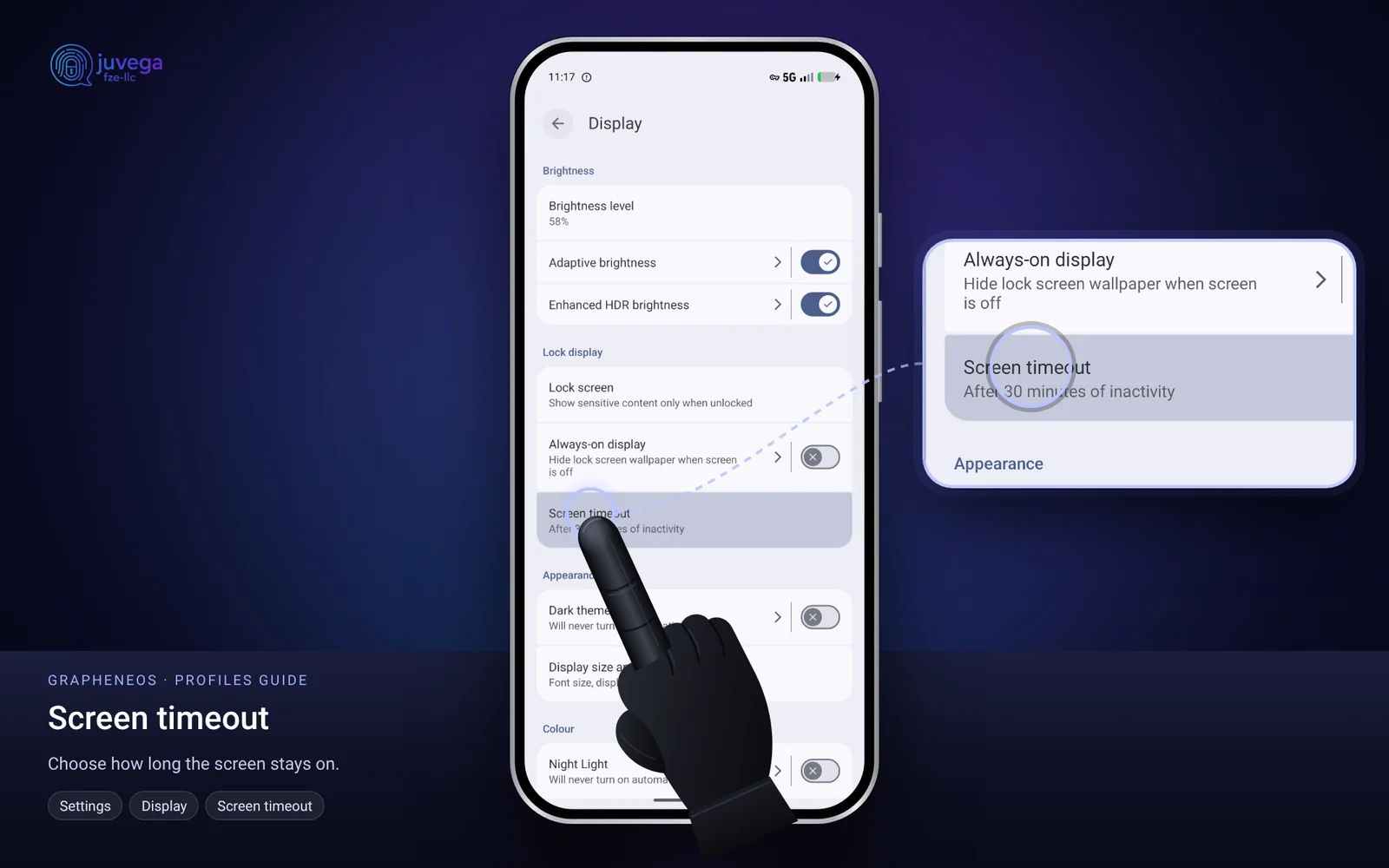
- Open Settings, then Display, then Screen timeout and choose how long the screen stays on.
What "ending a session" means
When you end a profile's session, its data is locked again and can only be opened with its password. This is why switching away from a profile you are not using is a good habit.
Good to know
- The Owner profile should have a strong password. It protects everything else.
- Notifications from other profiles can still reach you. In Settings > System > Users, turn on Send notifications to current user.
- Do not store anything important only in a profile you may delete. Deleting a profile erases its apps and files.
This guide is based on the public AnarSec guide "GrapheneOS for Anarchists" (anarsec.guide), rewritten in plain language. Their guide is written for people at high risk, so some advice is stricter than most people need. Use what fits your situation.
Comments
Loading comments…