
How to remove metadata from photos and files
Photos and documents carry hidden details about where, when and on what device they were made. Learn what metadata is and how to strip it before you share.
Metadata means "data about data". It is the hidden information stored inside a file, next to the part you can see. You never typed it in, but it travels with the file every time you share it.
What metadata can reveal
- Photos: the exact GPS place it was taken, the date and time, your phone model, sometimes the serial number of the camera.
- Documents (Word, PDF): your name, your company, the program used, edit dates, and sometimes earlier text that was "deleted".
- Audio and video: the device, the place and the time of recording.
A single photo posted online has led people to the front door of the person who took it. Always clean files before sharing.
Step 1: Stop location being saved in photos
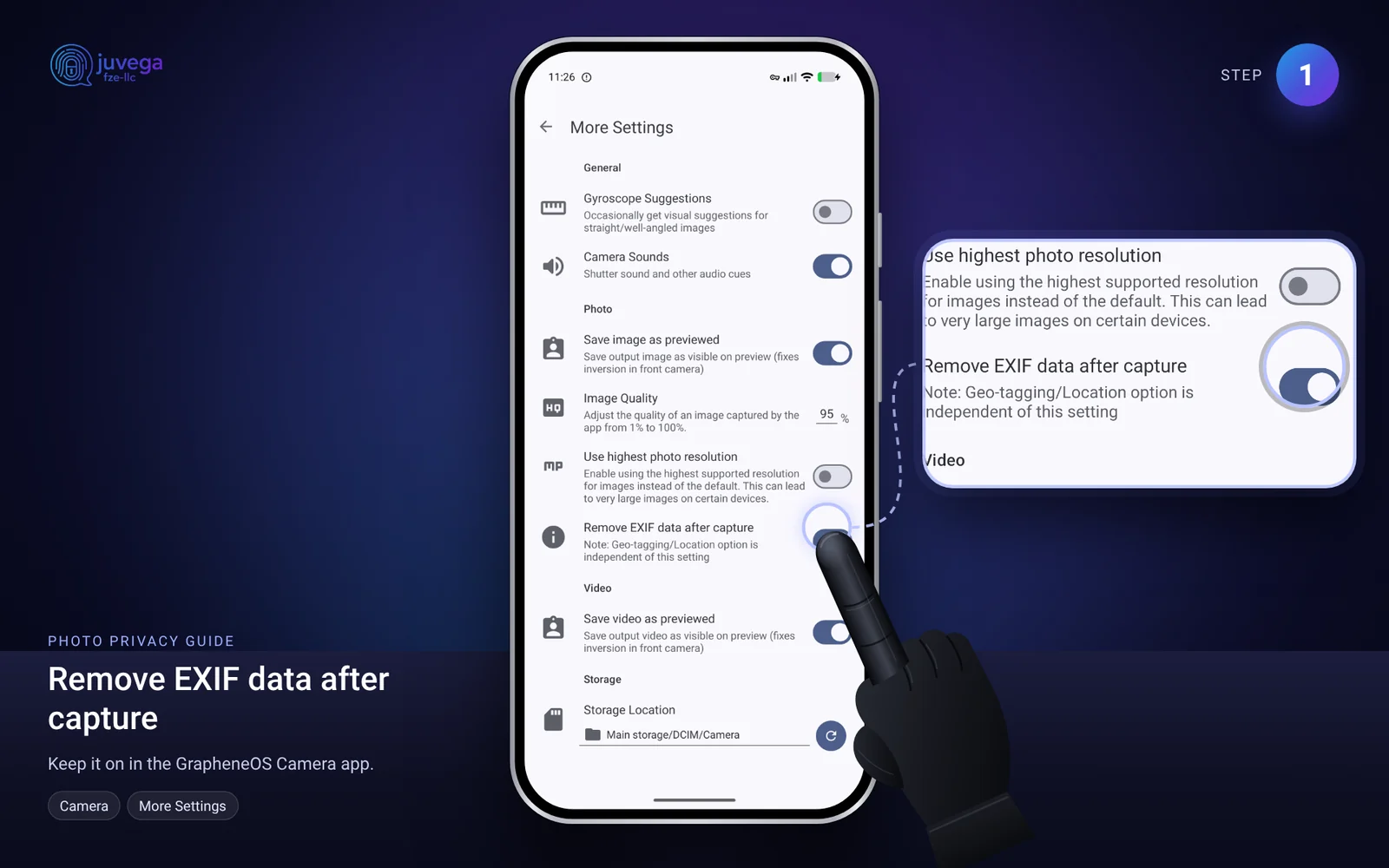
- Open the Camera app.
- Open its settings (the arrow at the top of the screen), then More Settings, and keep Remove EXIF data after capture switched on.
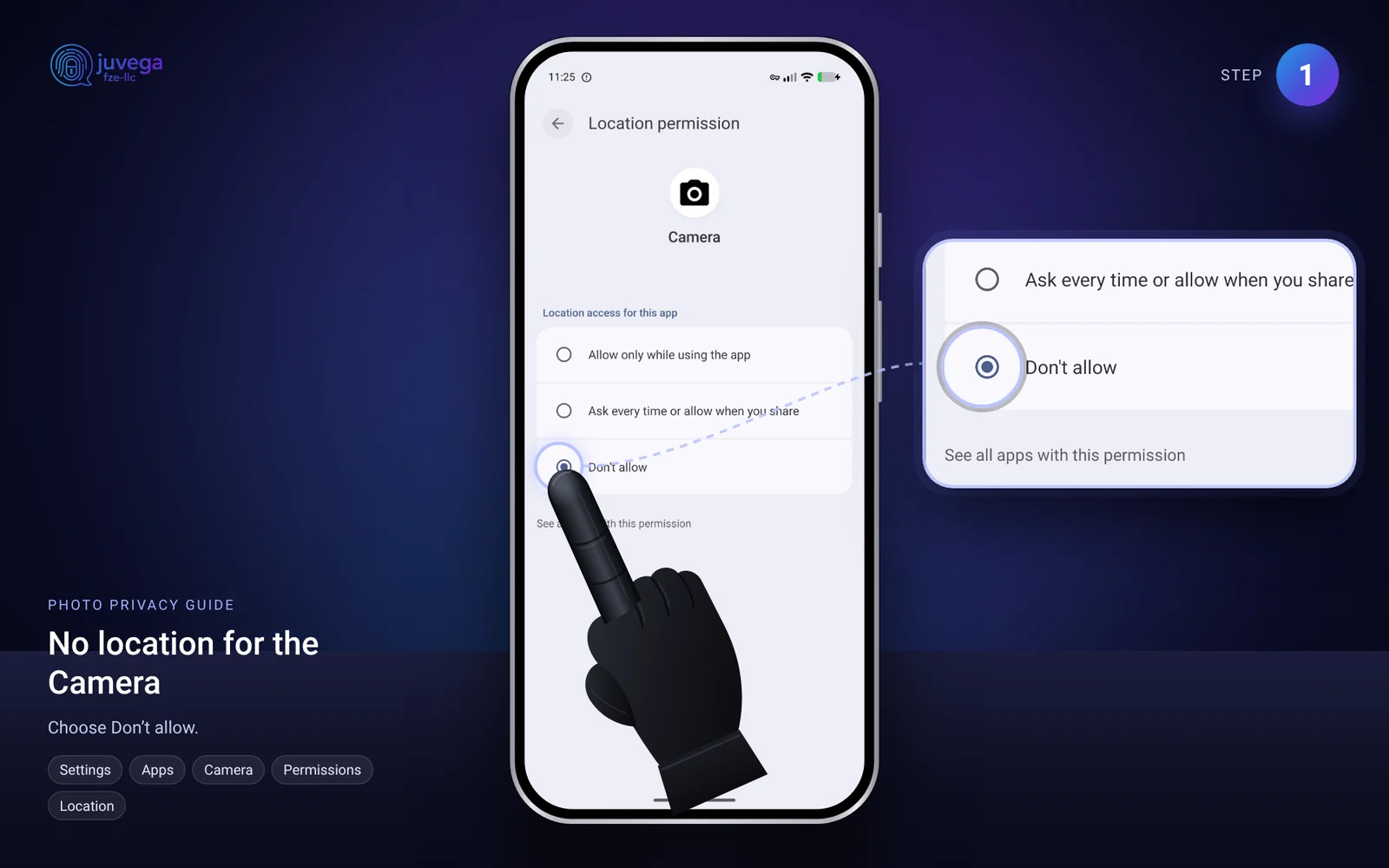
- Open Settings > Apps > Camera > Permissions > Location and choose Don't allow, so photos are never tagged with your location.
GrapheneOS also removes photo metadata for you when you share a picture from some of its apps, but do not rely on this. Clean the file yourself when it matters.
Step 2: Remove metadata from a photo
Use an open-source app. Download it using the order in how to download apps safely: official website, then F-Droid, then Aurora Store.
- Install Scrambled Exif (available on F-Droid).
- Open the photo, or choose Share and pick Scrambled Exif.
- The app makes a clean copy with the hidden details removed.
- Share the clean copy, not the original.
Step 3: Remove metadata on a computer
- Install ExifCleaner (Windows, Mac, Linux) from its official website.
- Drag your files into the window.
- They are cleaned straight away.
For documents and PDFs on Linux you can use MAT2 (Metadata Anonymisation Toolkit).
Step 4: Check that it worked
Open the clean file's Details / Properties. You should see no GPS position and no device name. If you still see them, clean it again.
Other habits that help
- Screenshots usually carry less metadata than the original photo, but still check.
- Send files through SimpleX Chat, which keeps your identity out of the chat.
- Remember that what is in the picture can also give you away: street signs, reflections, shadows.
- Old copies of a file can still be recovered. See how deleted data is recovered.
Quick checklist
- Turn off location tags in the camera.
- Clean the file before sharing.
- Check the details.
- Share only the clean copy.
Comments
Loading comments…