
How to cross a border with a clean phone, and get your SimpleX chats back after
Back up SimpleX, encrypt the backup with PGP, wipe your phone or profile before a border or high-risk area, then restore everything once you are safe.
Border checks and high-risk places are where phones get taken, unlocked or copied. The safest phone in those moments is one with nothing on it to find. This guide shows how to travel with an empty phone, then get every SimpleX chat, contact and group back once you are somewhere safe.
The idea in one line: back up SimpleX, lock the backup with PGP, store it online, wipe the phone, travel, then restore.
The law is not the same everywhere. Many countries allow border officers to inspect phones, and some can keep a device or refuse entry. This guide is about not carrying sensitive data. Never lie to officials or hide things in a way that breaks the law where you are.
Why this works
- SimpleX keeps your chats only on your phone. There is no account on a server to log in to, so a wiped phone has nothing linking you to your contacts.
- Messages sent to you while you travel wait, encrypted, on the SimpleX servers. Once you restore the backup they are delivered. The servers keep waiting messages for a limited time (usually a few weeks), so restore soon after your trip.
- The backup is locked twice: by SimpleX's own database password, and again by PGP. Whoever stores the file sees only random data.
Before you start
- SimpleX Chat, set up with your chats. If you use GrapheneOS, it is best kept in a secondary profile (see how to use profiles), because a profile can be deleted in seconds without resetting the whole phone.
- A place to store the backup online, for example an encrypted cloud drive. An account that is not in your real name is better.
- Two strong passwords you can remember: one for the SimpleX database, one for the PGP backup. Do not write them on paper you will carry.
Step 1: Set a database password in SimpleX
- Open SimpleX and tap your profile picture, then Settings.
- Tap Database passphrase & export.
- If you have not set one yet, tap Database passphrase and choose a strong password. SimpleX will not let you export without one.
Step 2: Stop SimpleX and export the backup
- In Database passphrase & export, turn off Chat is running and tap Stop.
- Tap Export database and save the file. It is a
.zipfile containing all your profiles, contacts and chats. - Do not start the chat again on this phone. This is very important:
- The backup must be the newest copy. If SimpleX keeps running after the export, new messages and new encryption keys are made that are not in the backup, and restoring an older copy can break some of your conversations.
- Never run two copies of the same SimpleX database (for example the old phone and the restored one). SimpleX warns this disrupts connections.
- If you need to use SimpleX again before you leave, that is fine: just stop it and export again right before you wipe, and use only that newest file.
SimpleX also has Migrate to another device, which uploads your database and shows a QR code. It is great for moving between two phones you have in your hands, but the upload is temporary, so it is not suited to a trip.
Step 3: Encrypt the backup with PGP
PGP wraps the file in strong encryption, so even if someone gets the file from your cloud storage, it is useless without your password.
- Open Juvega PGP (it also works offline), or OpenKeychain.
- Choose Encrypt a file, pick the SimpleX
.zip, and protect it with a long password (a passphrase from the password generator is ideal). If you have your own PGP key, you can encrypt to your public key instead. - Save the encrypted
.gpgfile. Give it a boring name, likenotes-backup.gpg. - Delete the unencrypted
.zipfrom the phone.
Why this is safe: the backup is protected twice. SimpleX already encrypts its database with your database password, and PGP adds a second, independent lock using strong, well-tested encryption (AES-256 in Juvega PGP). The storage company, anyone who breaks into your storage account, or anyone who copies the file only sees random data. Without both passwords, nobody can read your chats.
Step 4: Upload the encrypted backup
- Upload the
.gpgfile to your cloud storage. - Check it is there and the size looks right, ideally by downloading it once on another device.
- Delete the file from the phone's Downloads folder.
Step 5: Wipe SimpleX from the phone
Choose one:
- Delete the profile (fastest, GrapheneOS). From the Owner profile, open Settings > System > Users, tap the profile with SimpleX, and Delete user. Everything in that profile, including SimpleX, is erased.
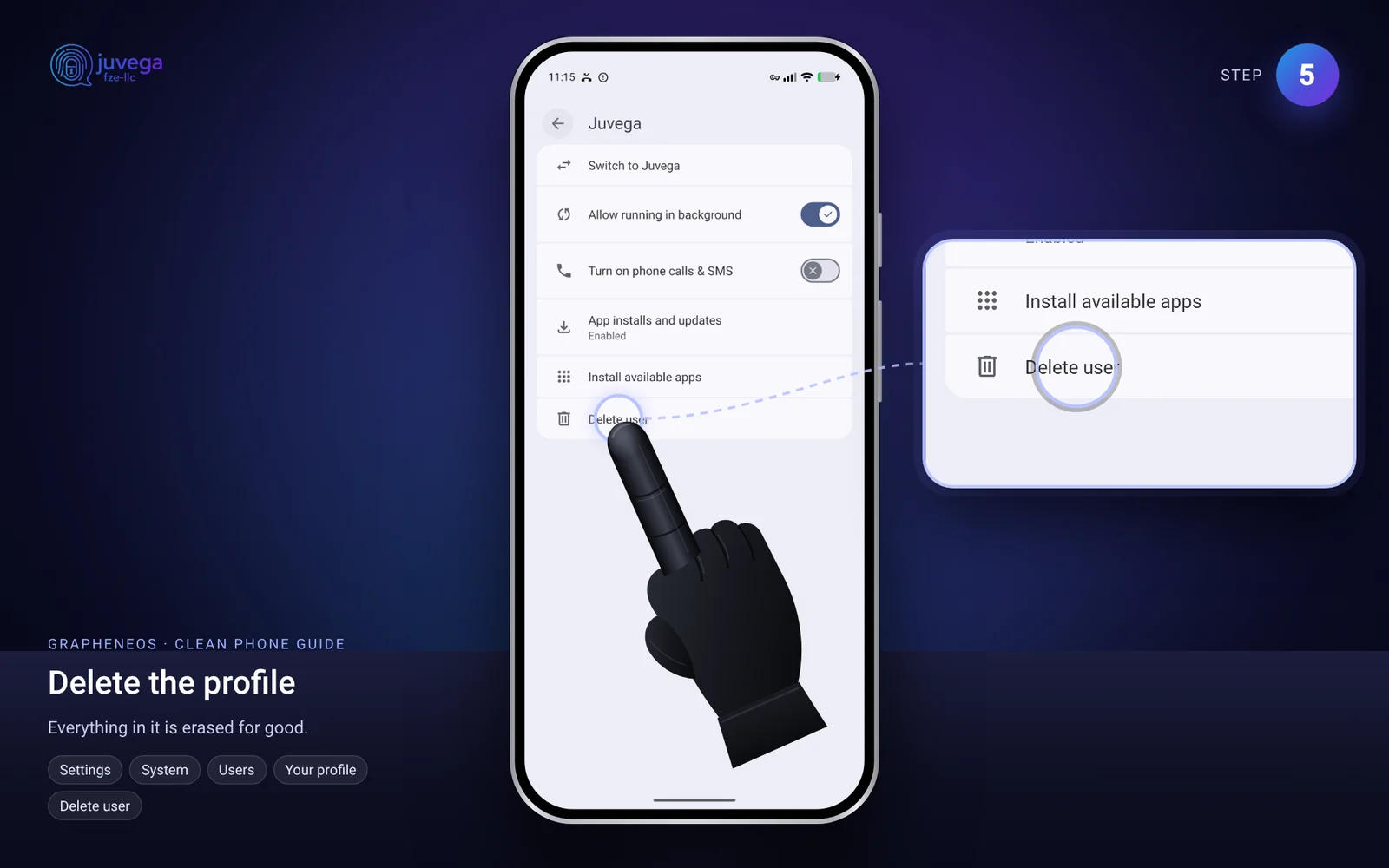
- Reset the whole phone. Settings > System > Reset options > Erase all data (factory reset). This is the cleanest option for very high-risk places.
On GrapheneOS, data is encrypted with keys that are destroyed when a profile is deleted or the phone is reset, so the old data cannot be recovered. See how deleted data is recovered for why this matters.
Step 6: Travel
Your phone now has no SimpleX app, no chats and no contacts. Keep it normal: an ordinary phone with everyday apps looks less unusual than a completely empty one.
Step 7: Restore once you are safe
- Make a new profile (GrapheneOS): Settings > System > Users > Add user.
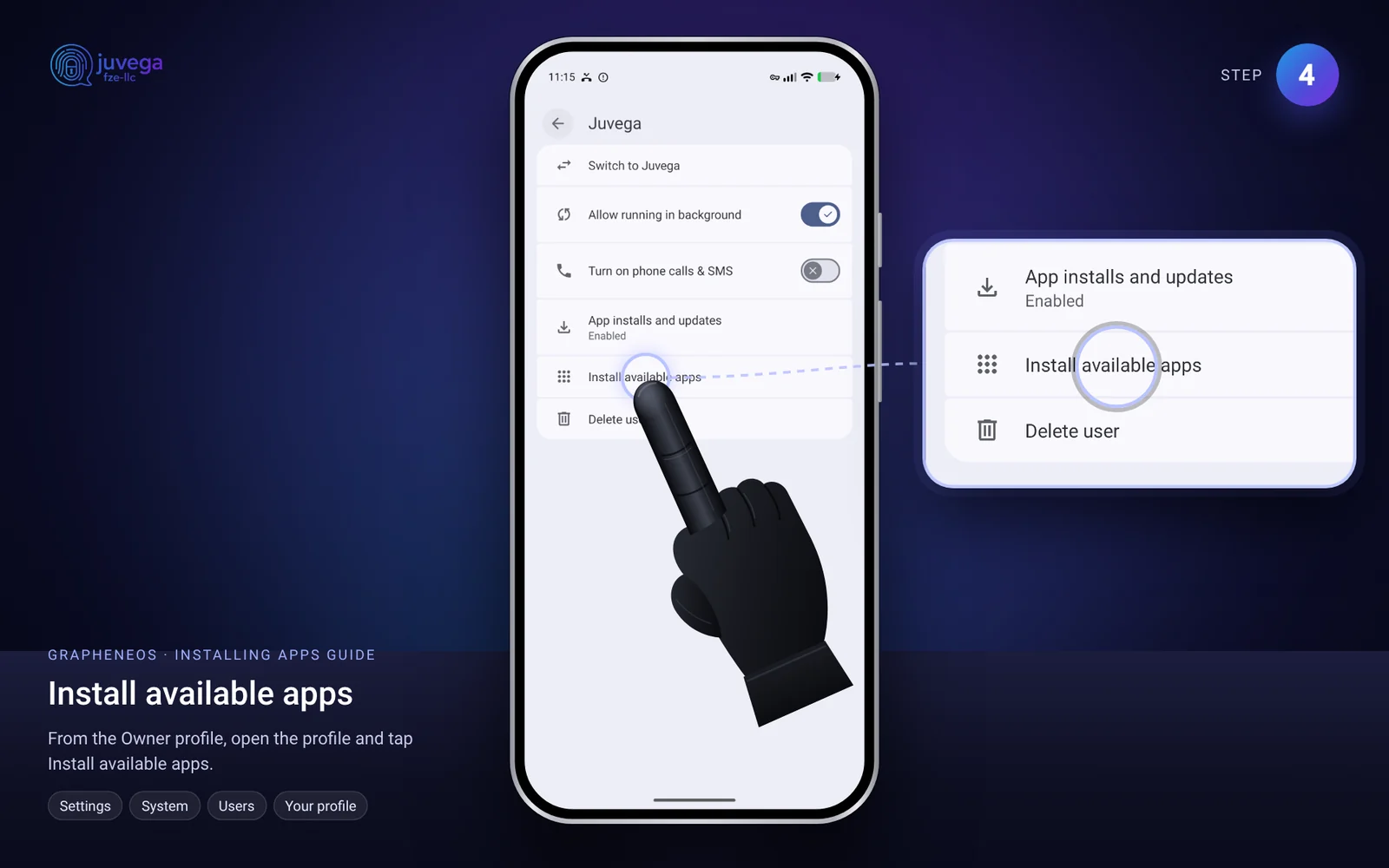
- Copy your apps across quickly. Still in the Owner profile, tap the new user and choose Install available apps. Select the apps you need, including SimpleX, and they are installed in the new profile in seconds, without downloading them again. Switch to the new profile and log in to the apps you use.
- Connect to a network you trust, ideally with a VPN.
- Download your
.gpgbackup and decrypt it with Juvega PGP or OpenKeychain to get the.zipback. - Open SimpleX, create a temporary profile with any name (it is replaced in a moment), then go to Settings > Database passphrase & export.
- Turn off Chat is running, tap Import database, choose the
.zipand confirm. - Turn the chat back on and enter your database password. Your contacts, groups and chats are back, and messages that were waiting on the servers arrive.
- Delete the
.zipand the.gpgfile from the phone, and delete the old backup from cloud storage if you no longer need it.
Good to know
- Practise once at home before a real trip, so you know your passwords work and the restore is quick.
- If you forget the SimpleX database password or the PGP password, the backup cannot be opened by anyone, including us.
- Do the same for other apps: most password managers, 2FA apps and wallets have an encrypted export. A wallet needs only its recovery phrase, which should never be stored on the phone or online.
Comments
Loading comments…