
How to use FakeTraveler to set a mock GPS location
Choose a place on a map and make apps on your Android phone believe you are there, without root.
FakeTraveler is a free, open source Android app. You pick a spot on a map and the app reports that position as your phone's location. It does not need root.
Use this only for privacy, testing or situations where it is allowed. Some apps and services forbid location spoofing, and it will not hide your IP address.
Install
- Install FakeTraveler. It is not in the main stores, so use Obtainium (it updates the app for you). See how to install apps on GrapheneOS.
Allow mock locations
- Open Settings > About phone and tap Build number 7 times to enable developer options.
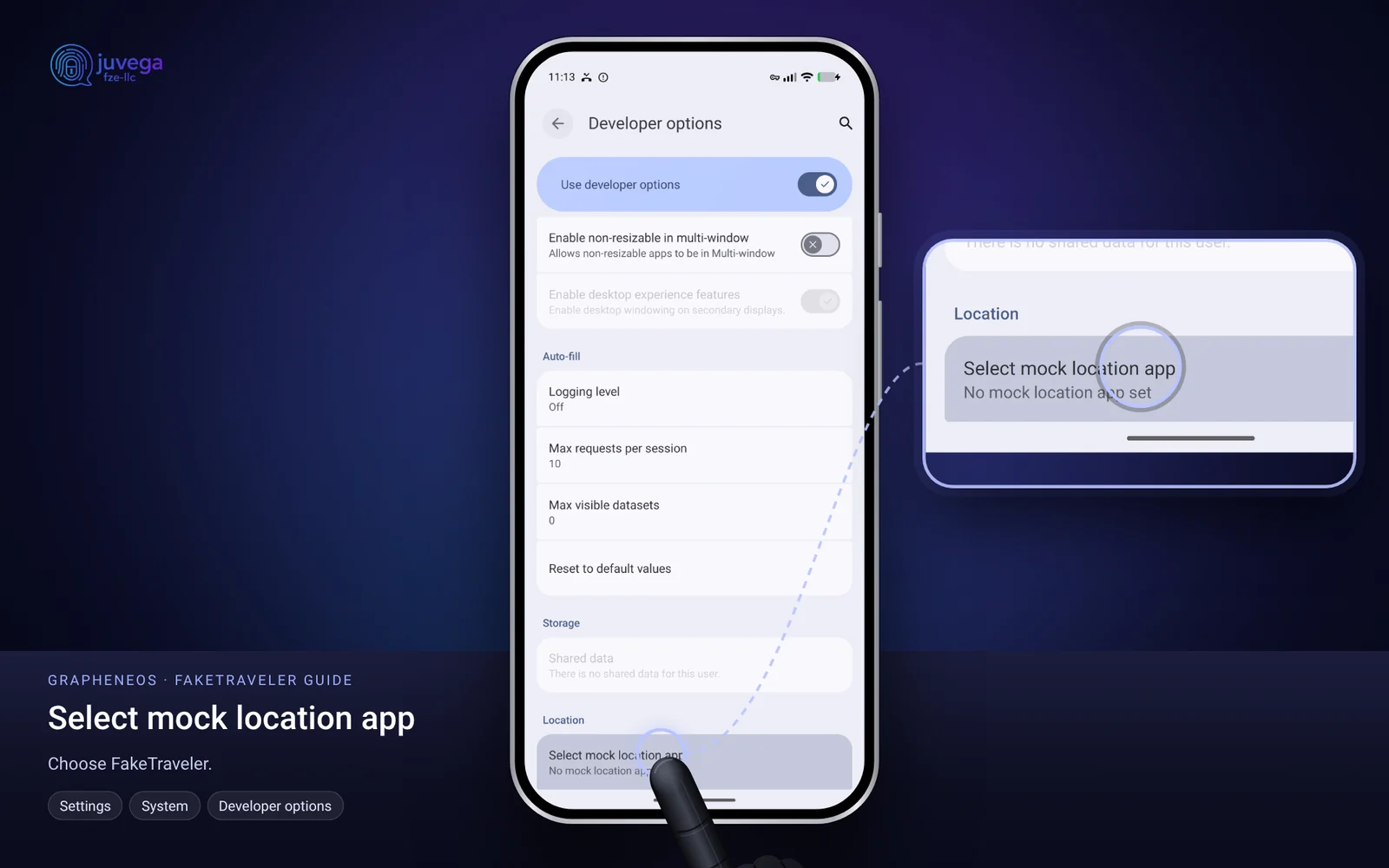
- Open Settings > System > Developer options.
- Tap Select mock location app and choose FakeTraveler.
- Open FakeTraveler and allow location access when asked.
Set your fake location
- Open FakeTraveler. The map shows your position.
- Long-press on the map where you want to appear.
- Tap Apply. The app now reports that location to other apps.
- Open a maps app to check that your position has moved.
- To go back to your real location, open FakeTraveler and stop the mock location, or turn off location in Developer options.
Optional settings
Tap the gear button to open settings. There you can set the mock location to run over a period of time or update on a schedule.
Troubleshooting
- Location does not change: confirm FakeTraveler is chosen as the mock location app, then restart the app that reads your position.
- The app snaps back to your real location: turn Wi-Fi and Bluetooth scanning off in your location settings and apply the location again.
- An app still knows where you are: it may use your IP address or your mobile network. Use a VPN if you want to change that.
Comments
Loading comments…