
How to install the Juvega Android app
Put Juvega on your home screen as a real app. No Google account and no trackers.
The Juvega app opens the Juvega shop, guides and privacy tools in their own window, so they are one tap away. It has no trackers, no analytics and no Google services, and it works on GrapheneOS.
Step 1: Download the app
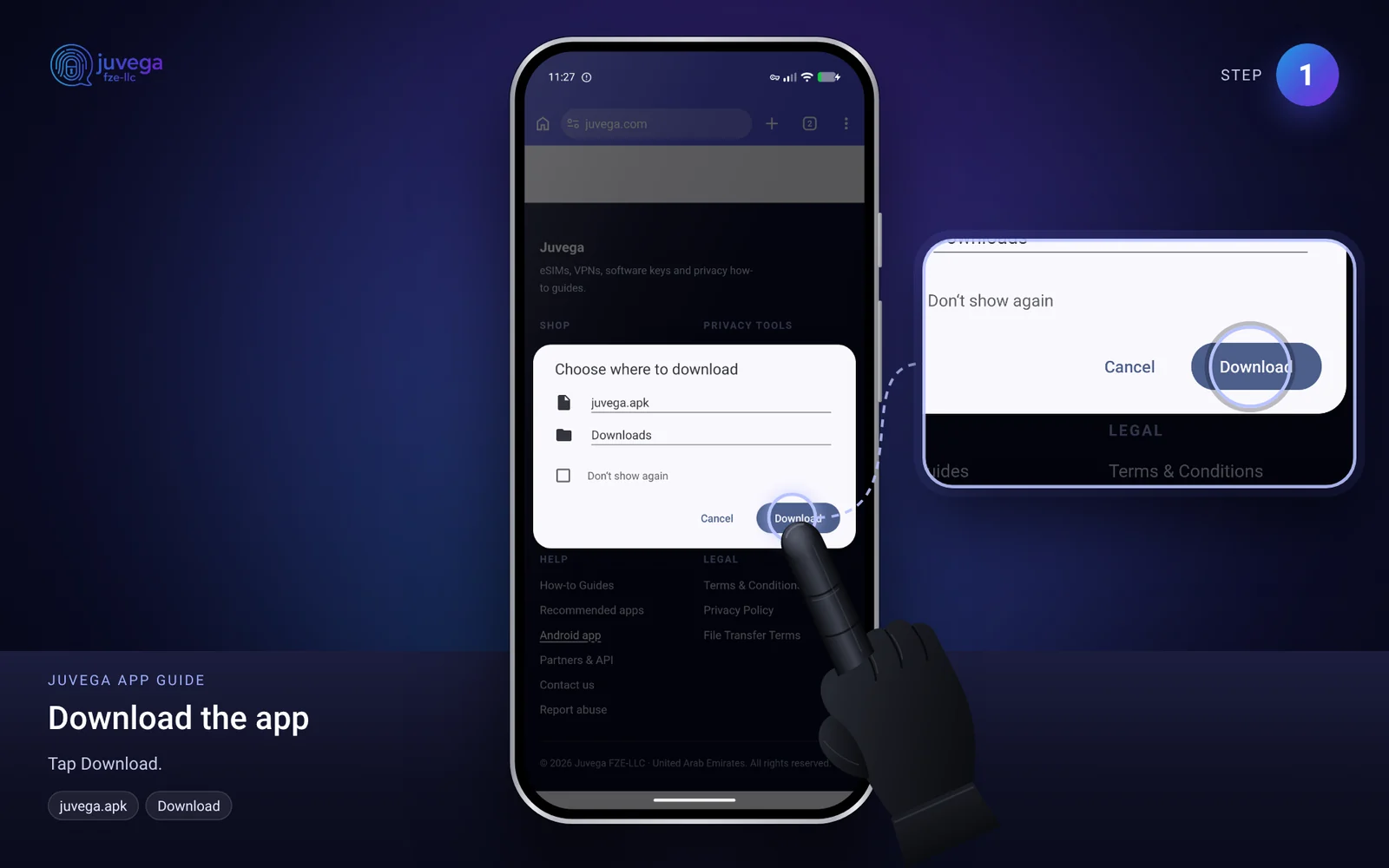
- On your phone, open juvega.apk (you can also find it on the Tools page, under Juvega for Android).
- If your browser asks whether to keep the file, tap Download or Keep.
Step 2: Install it
- When the download finishes, tap Open, or open the file from your Files app under Downloads.
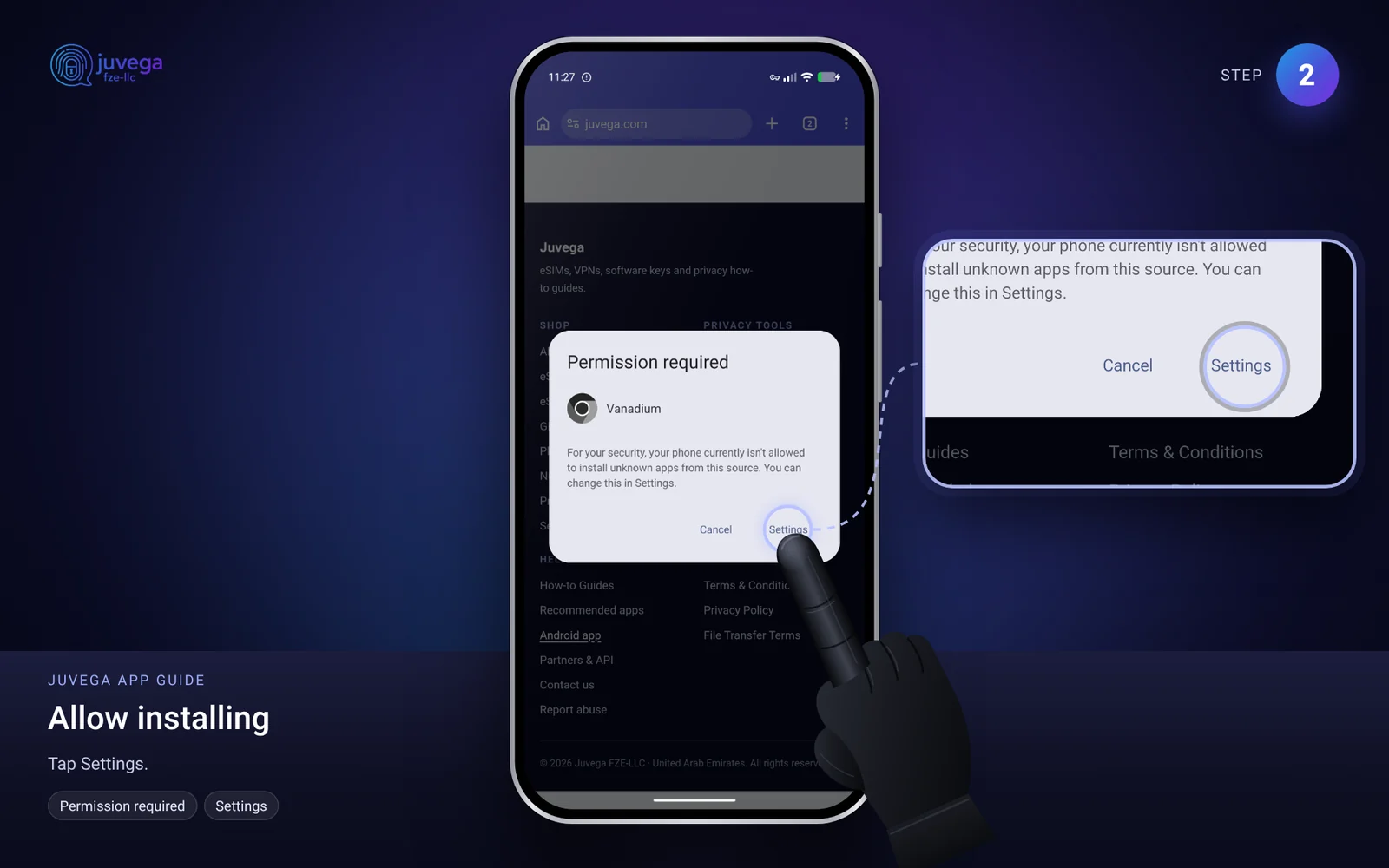
- Android asks for permission to install apps from your browser. Tap Settings, turn on Allow from this source, then go back.
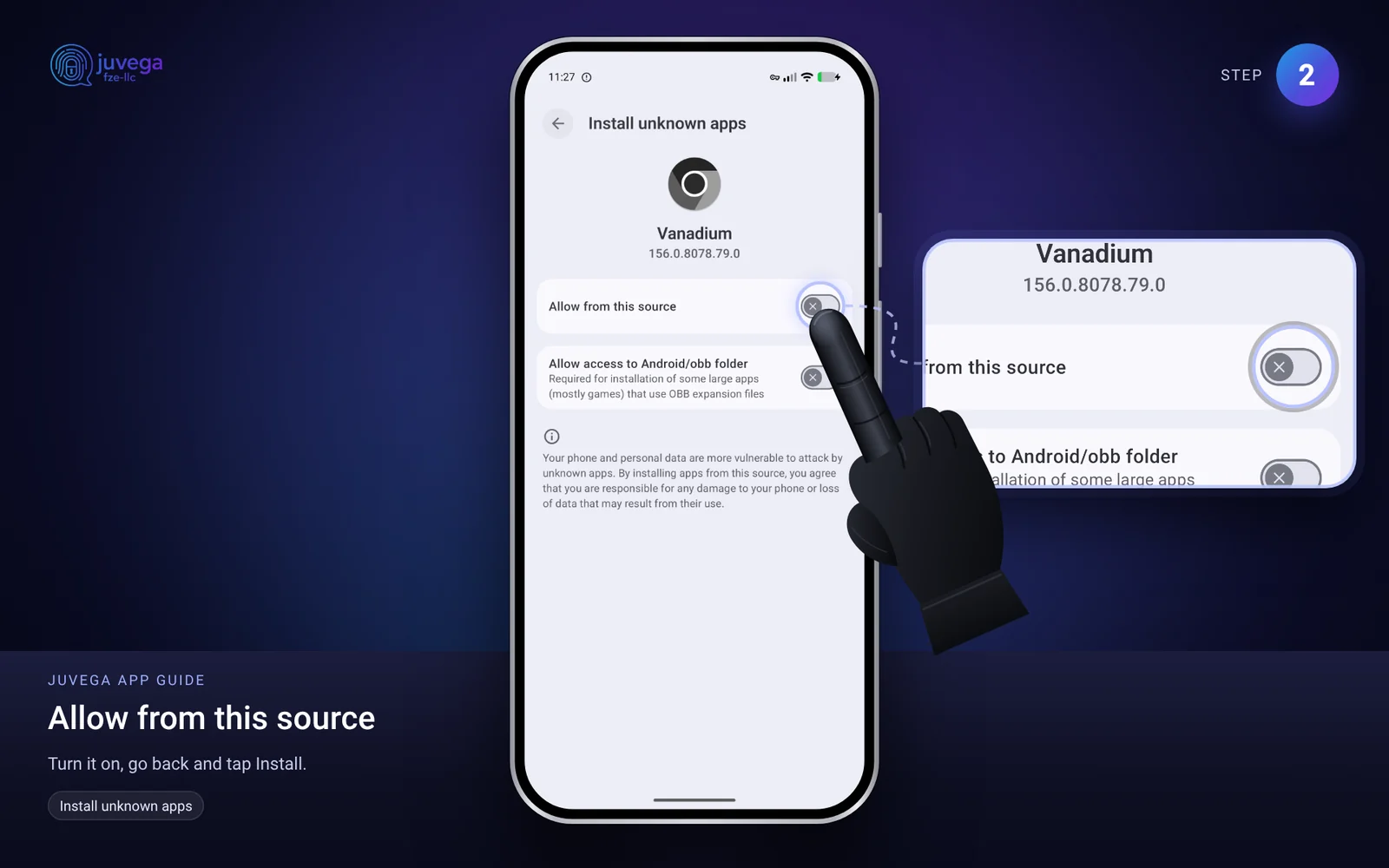
- Tap Install.
On GrapheneOS you can turn Allow from this source off again after installing. It is only needed once.
Step 3: Open Juvega
Find Juvega in your app list and open it. Log in to your Juvega account inside the app if you want to send files or see your orders.
Good to know
- Files you save in the app (from File Transfer, Juvega PGP or the Photo Cleaner) go to your Downloads folder.
- Links to other websites open in your normal browser. Payment links such as bitcoin: or monero: open your wallet app.
- The screen stays on while you send or receive a file, so the transfer does not stop.
- To update, download the newest juvega.apk and install it over the old one. Your login stays.
Comments
Loading comments…